Insights
Dec 26, 2025
Increase your workflow speed in Framer using keyboard shortcuts
By using keyboard shortcuts in Framer, you can speed up your workflow and maximize efficiency. Note that while understanding the differences in shortcuts between Mac and Windows, the default shortcuts cannot be customized.

Uploaded by

Translated by

Contents
Table of Contents
Why Use Keyboard Shortcuts?
Using keyboard shortcuts allows you to navigate the site and perform various tasks easily without mouse clicks.
In Framer, frequent tasks like publishing sites, duplicating items, and adding frames can be executed quickly using predefined shortcut combinations. Especially for designers, leveraging shortcuts is recommended to maintain a seamless workflow.
Framer Shortcuts
To see all available shortcuts, click on the Project menu and go to Help, then select Keyboard Shortcuts. You can view the complete list of shortcuts at a glance through a popup window.
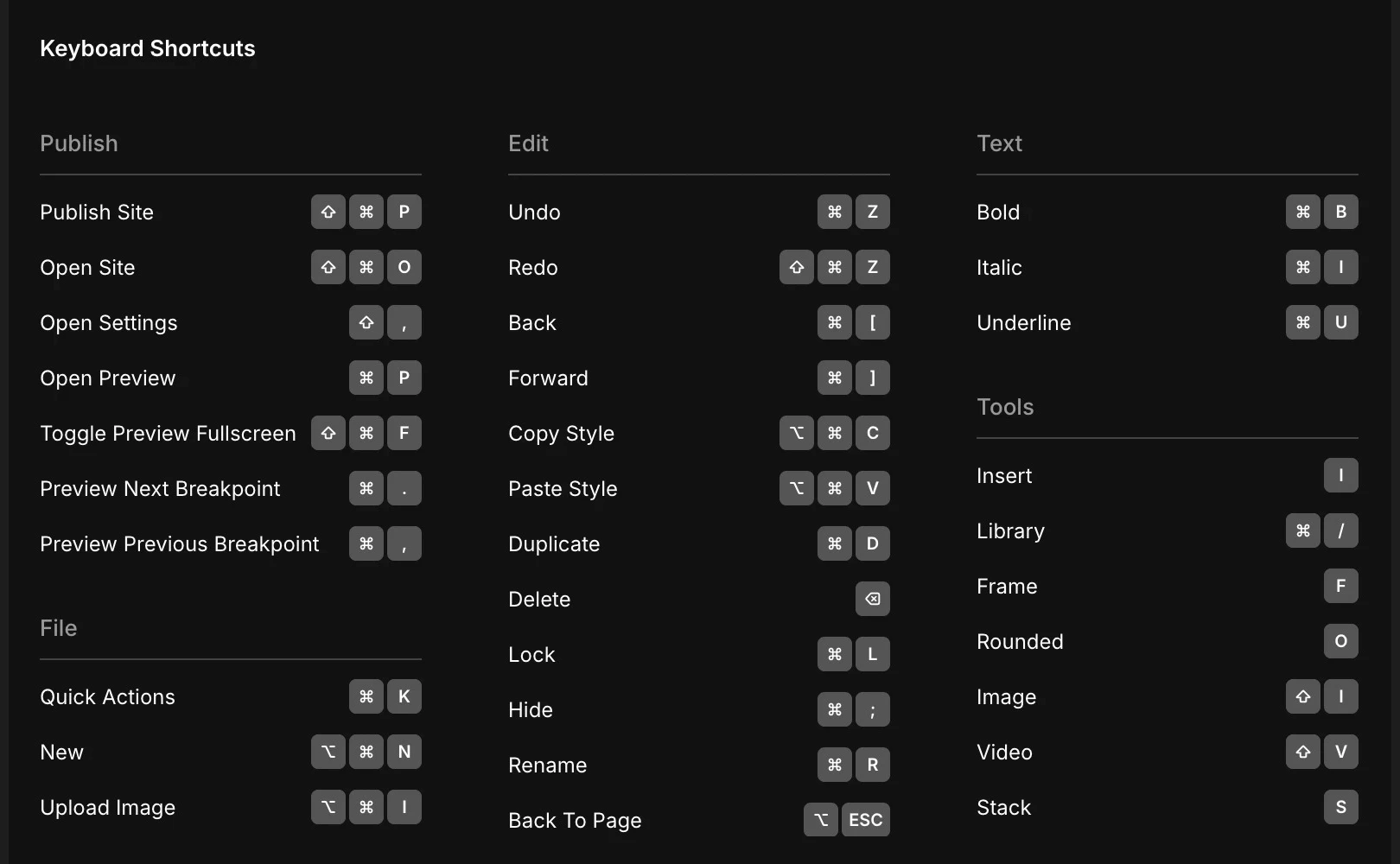
Understanding Differences Between Mac and Windows
Framer works well on any browser-based platform, but it's important to understand the shortcut differences between Mac and Windows. In most cases, Mac's Cmd corresponds to Windows' Ctrl, and the Option key corresponds to the Alt key.
Frequently Asked Questions (FAQ)
Q. Can I customize the default shortcuts provided in Framer?
No, all shortcuts in Framer are fixed into the Framer system, and users cannot change key combinations.
Q. Do Framer shortcuts take precedence over browser shortcuts when used in a browser?
Yes, when Framer is active, its shortcuts generally take precedence over most browser shortcuts. However, critical control functions of the operating system or browser, such as
CMD + W(close window), remain intact, so be careful not to accidentally close the working tab.
Q. Can I continue design work with the shortcuts list popup open?
No, the shortcut help window is modal, so you can't edit the canvas while it's open.
This article is a translated and adapted version of the ‘Keyboard shortcuts’ from the Framer official blog.