Insights
Dec 26, 2025
Understanding Framer's Reduced Motion Settings
Use Framer's Reduced Motion settings to design with user comfort in mind. This setting helps reduce visual discomfort and ensures smooth operation on low-spec devices.

Uploaded by

Translated by
Contents
Table of Contents
What is Reduced Motion?
Modern operating systems offer features that allow users to reduce motion on their screens. Framer also caters to these preferences by providing settings to disable parallax, transforms, and layout animations.
How to set Reduced Motion
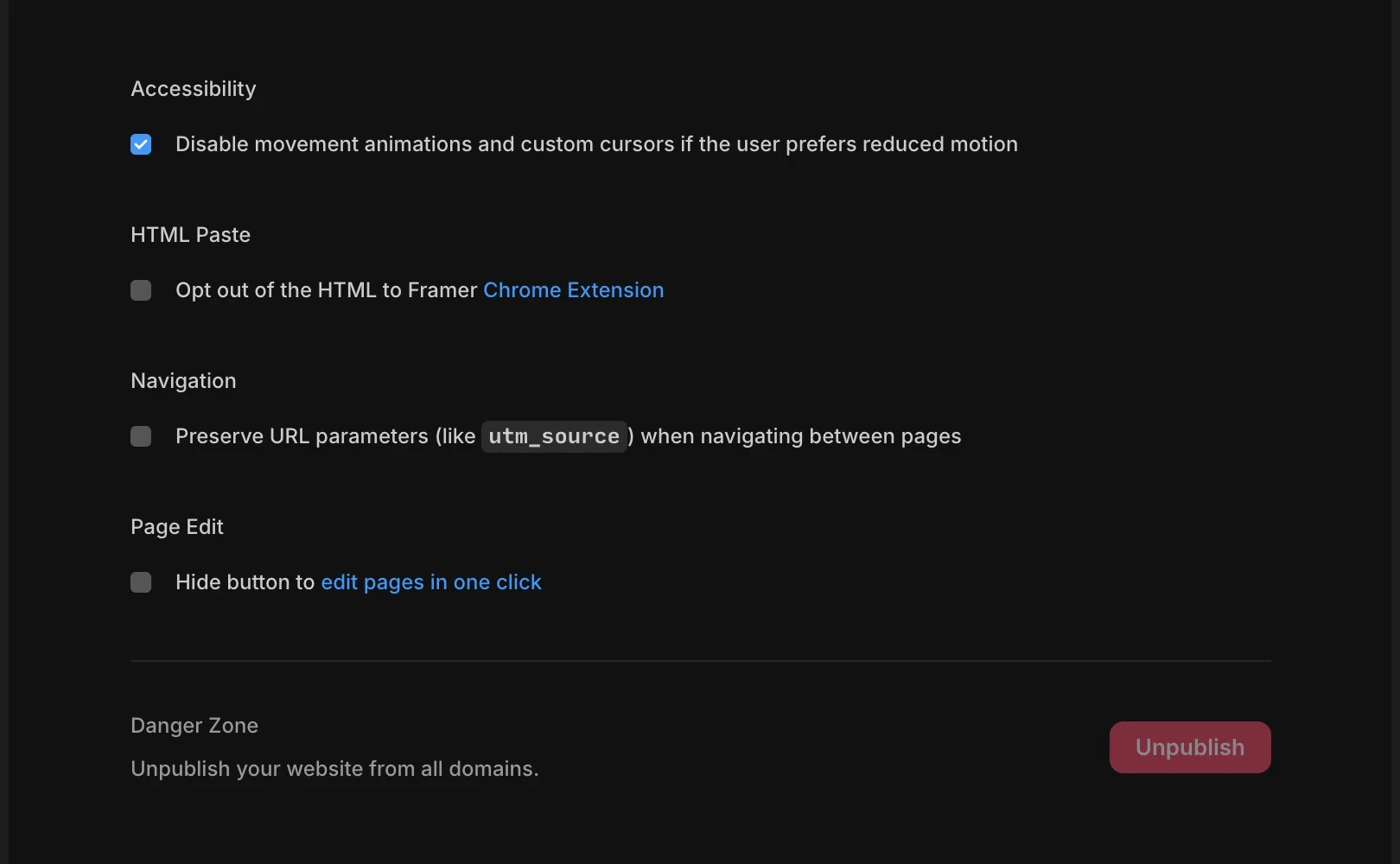
To toggle these effects in your project, go to the site settings. In the General tab, you can find options to adjust these settings, enabling control over various motion effects like parallax and layout animations.
Why is Reduced Motion important?
Creating impressive animations with Framer is great, but design that considers all users can provide a satisfying experience for everyone. If you want to see how your site looks with Reduced Motion settings, check Setting > Accessibility and activate Reduced Motion. It's a good habit to ensure your Framer site remains user-friendly with the setting turned on.
Reducing animations can make your site run more smoothly on low-spec devices or in battery-saving environments. Focus on delivering essential information rather than just glamour to users.
Frequently Asked Questions (FAQ)
Q. Does enabling this setting remove all effects on the site?
No. Reduced Motion mainly focuses on suppressing large movements (slides, excessive zooming, parallax scrolling) that might cause visual discomfort.
Q. Can Reduced Motion be applied individually to animations in specific sections?
No. Once activated in site settings, it commonly controls parallax and layout animations across all pages.
Q. Can animations created directly with code components be controlled by this feature?
No. To stop animations made directly with code components, additional coding logic must be implemented where the code is written.
This article is a translated and adapted version of the Framer official blog's ‘Reduced motion settings’ content.