Read Time
min
SEO
Insights
Sep 16, 2025
Setting a Custom Canonical URL in Framer
Setting the Canonical URL in Framer helps prevent SEO issues and maintain the right domain for your content. This is essential, especially when using reverse proxy connections, as ensuring the correct URL is crucial.


Contents
Table of Contents
What is Canonical URL Setup?
Framer automatically sets the main SEO information within the <head> tag, based on the linked domain. When you link and publish a domain through Framer, it automatically updates these tags to reflect the domain.
If you directly link a domain, the Canonical URL is automatically applied correctly. However, in cases where it's connected through a reverse proxy, Framer may not correctly determine the required information to set these tags. In this case, the SEO tags are generally set to the .framer.website domain, which can negatively impact SEO performance.
Therefore, in such situations, it's essential to manually specify the Canonical URL.
How to Set Canonical URL
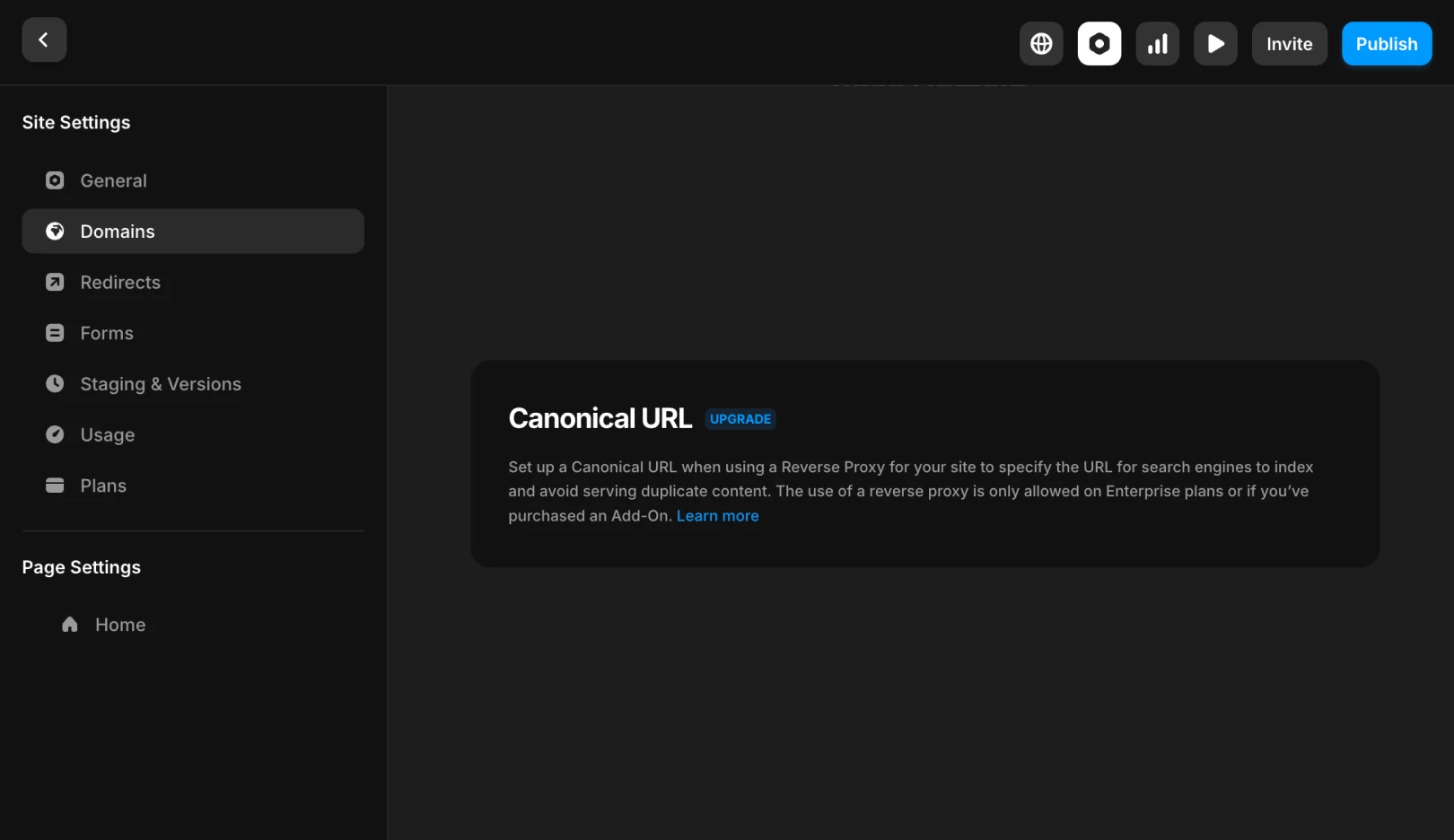
Navigate to Domain Settings
: Open your project and go to theSettings > Domainsmenu.Find the Canonical URL Field
: Scroll to the bottom of the page to find theCanonical URLfield.Enter the Correct Canonical URL
If the domain is only connected to the Framer site, enter the root domain. (e.g.,
https://domain.com)If the Framer site is part of a larger domain structure, enter the specific domain being hosted. (e.g.,
https://domain.com/blog)
Verify Settings
Republish the site and wait for optimization to complete.
Open the page source code to verify the
<link rel="canonical">tag.Ensure it points to the specified domain (e.g., instead of the default domain
.framer.website).
Conclusion
Setting the correct Canonical URL helps you avoid SEO issues. It also assists in saving the appropriate domain for your content in the database.
If you still encounter issues after following these steps, please make a request through the Framer Contact Page.
This article is a translated and adapted version of ‘Setting up a custom canonical URL in Framer’ from the Framer official blog.
More posts