Read Time
min
SEO
Sep 1, 2025
How images are optimized in Framer
When you upload images to Framer, they're automatically optimized without any need for conversion or resizing. Formats like JPEG, PNG, WebP, GIF, and TIFF are converted to AVIF automatically and adjusted to fit device screen sizes, enhancing your site's loading speed.



Contents
Table of Contents
Key Optimization Summary
JPEG, PNG, WebP, GIF, TIFF: Upload as they are, and set the resolution to “Auto” in the Image → Fill section. Framer automatically converts most images to AVIF and adjusts the size to fit the site and screen resolution.
SVG: Draw the frame, then choose Image in the Fill option to upload.
When you upload an image to Framer, it automatically optimizes it, so you don't need to convert it to WebP/AVIF or resize it to fit the content.
Automatic Resize for JPEG, PNG, WebP, AVIF, GIF, TIFF
Mobile users have smaller screens. For example, uploading a 3000×2000 px image for desktop may cause unnecessary data usage when loaded on a phone with a 390×890 screen. To prevent this, Framer automatically resizes images, allowing the browser to choose the optimal size for the screen.
Image Resizing Method
Uploaded
JPEG,PNG,WebP,AVIF,GIF,TIFFimages are automatically scaled down to 512, 1024, 2048, 4096 px sizes.Images are not upscaled; for example, a 3000 px wide image will only have 512, 1024, and 2048 px versions created.
Resizing is based on the longer side. If the height is 3000 px and longer, resizing is based on the height.
Browser Optimization Handling
Most <img> tags automatically include srcset and sizes attributes.sizes: Tells the browser the display size of the image.srcset: Provides all resized versions (including the original) so the browser can choose the optimal image.
Resolution Options
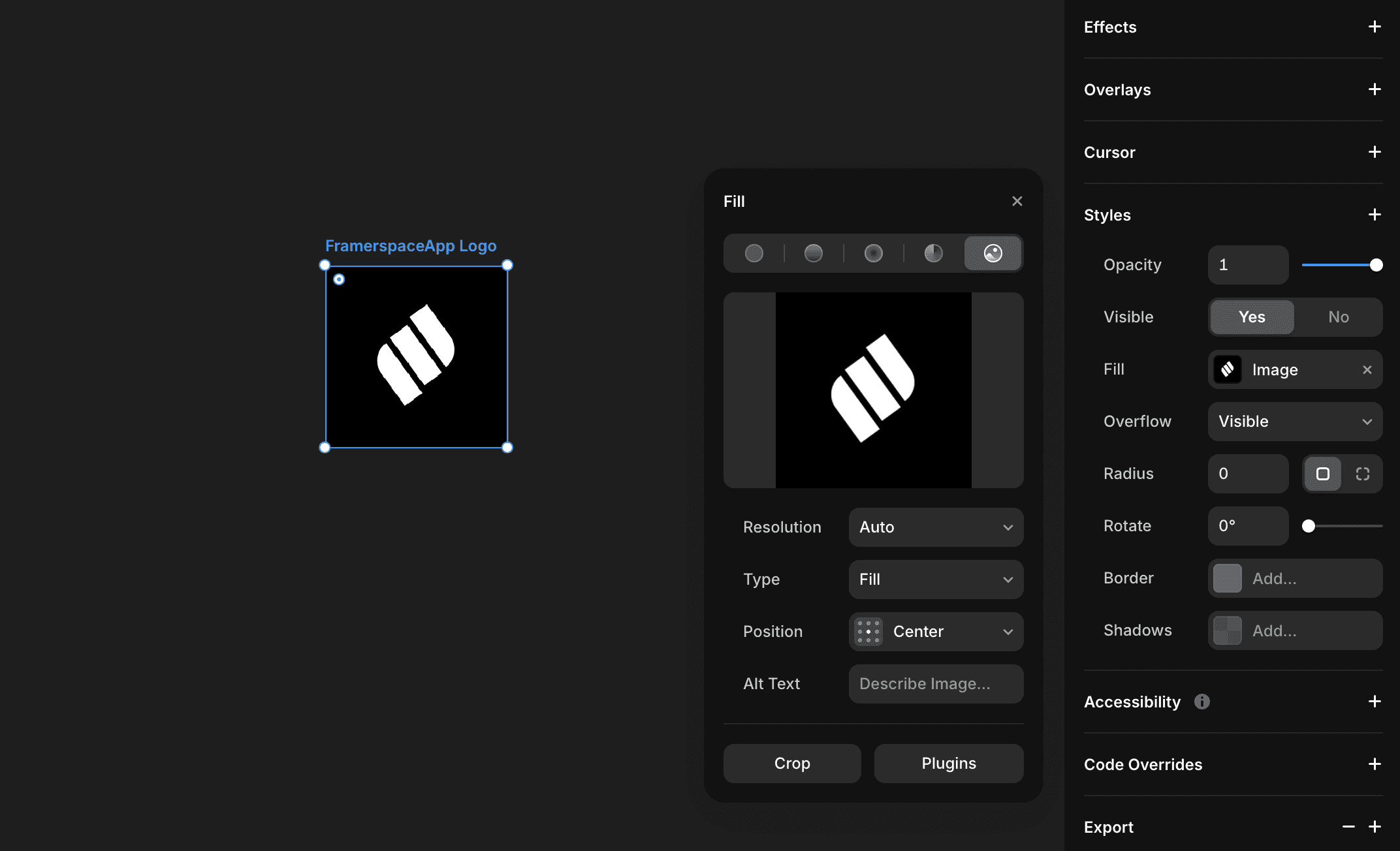
Control through Fill → Image → Resolution.
“
Small”, “Medium”, “Large”, “Full” options force the usage of 512, 1024, 2048, 4096 px versions.However, images are not upscaled beyond the original size. For instance, a 1500 px wide image remains 1500 px even if Large or Full is chosen.
JPEG, PNG, WebP, GIF, TIFF > AVIF Conversion Rules
Category | Processing Method | Remarks |
|---|---|---|
Basic Conversion | AVIF lossy compression (quality 80) | For JPEG, PNG, WebP, GIF, TIFF |
Auto (Lossless) Selection | WebP lossless conversion | File size ↑, no compression artifacts |
Animated Images | WebP lossy retention | AVIF unable to convert animation |
On Initial Request | WebP lossy (quality 90) provided first → then replaced with AVIF | Replaced automatically after conversion |
If size after conversion > original | Original provided | Maintain original if not efficient |
Browser Support
Browser Environment | Format Provided |
|---|---|
AVIF Supported (e.g., Safari 16.4+) | AVIF |
WebP Only Supported | WebP |
AVIF & WebP Unsupported | Recompressed original |
Reason for PNG Lossy Compression
Although PNG is inherently lossless, many uploaded images are screenshots.
Applying lossy compression (quality 90) can significantly reduce size.
Can be optimized without noticeable quality loss
SVG -> SVGO Optimization
Framer optimizes uploaded SVGs with SVGO.
Applies to both SVG graphics (indicated by the
<svg>tag) and Image Fill.If an SVG has many paths or layers, it can impact site performance. If necessary, it's recommended to upload the SVG as an Image Fill.
If images don't display correctly or there are quality issues, please contact the support team through the Framer Contact Page.
This article is an adaptation of the Framer official blog 'How images are optimized in Framer'.