Read Time

0

min

Read Time

0

min

Get Started

Jul 11, 2025

Framer Interface: Key Structure and Features

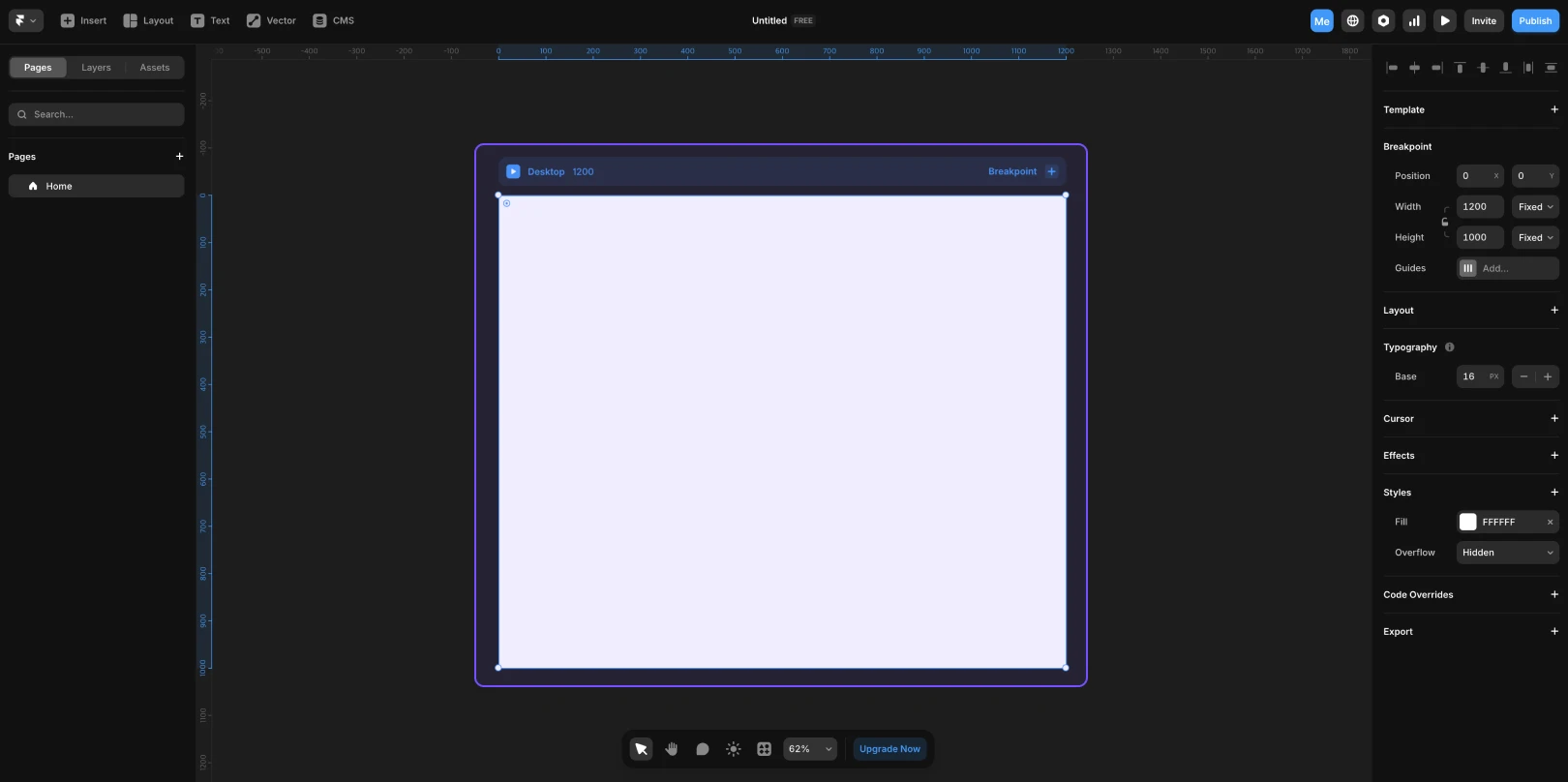
Framer's interface consists of a top toolbar, left sidebar, right sidebar, and canvas. Understanding the functions of each area can make the design process much more efficient.


Framer Logo for Blog Authors

Uploaded by

Profile of Blog Author Song Yebin

Translated by

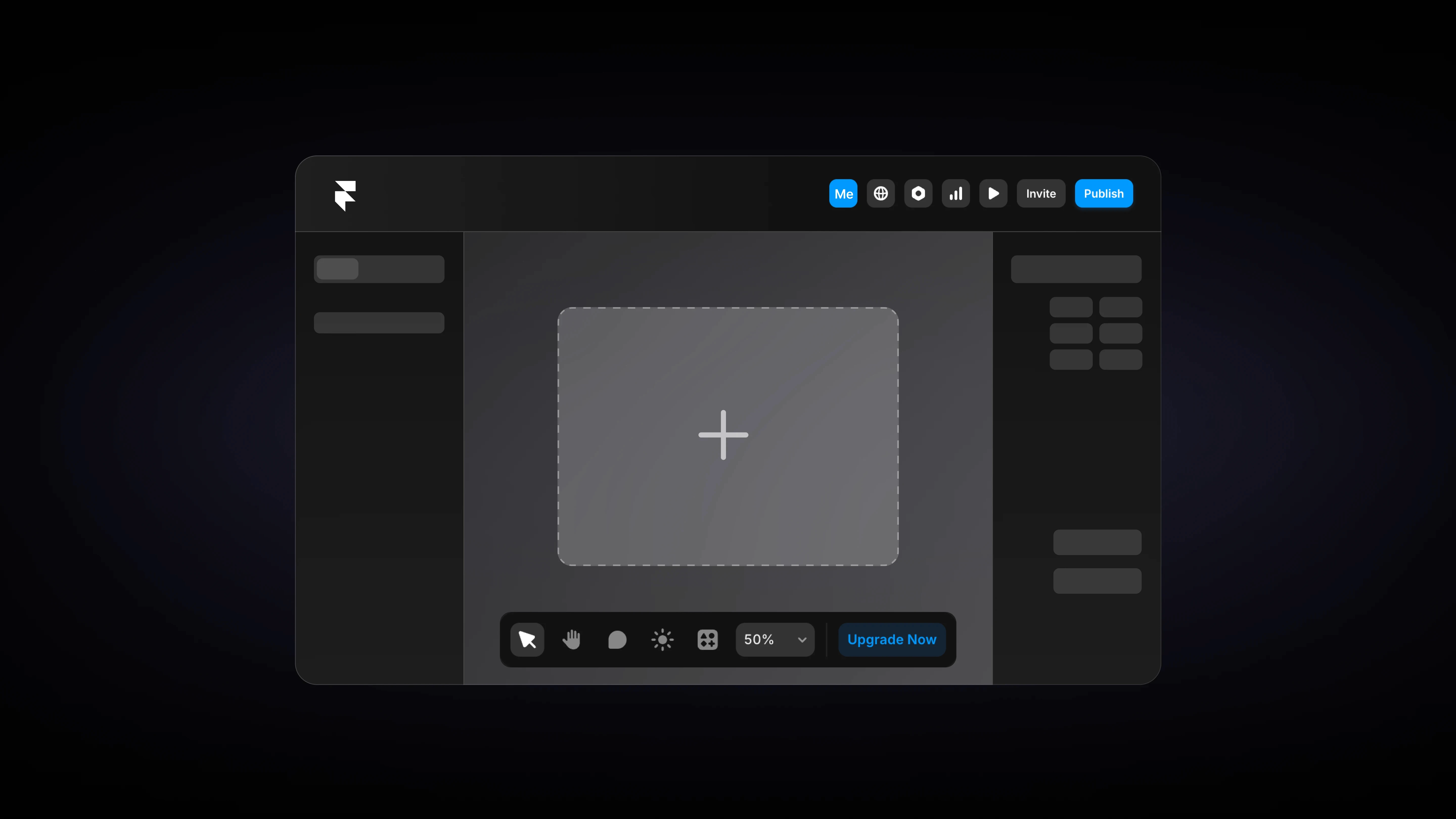
A blog thumbnail explaining the main structure and features of the Framer interface, including screenshots of the top toolbar and sidebar components.

Contents

Table of Contents

Main Areas of the Framer Interface

The Framer screen consists of the following four main areas.

  1. Top Toolbar

  2. Left Sidebar

  3. Right Sidebar

  4. Canvas

Top Toolbar

(1) Left Area of the Top Toolbar
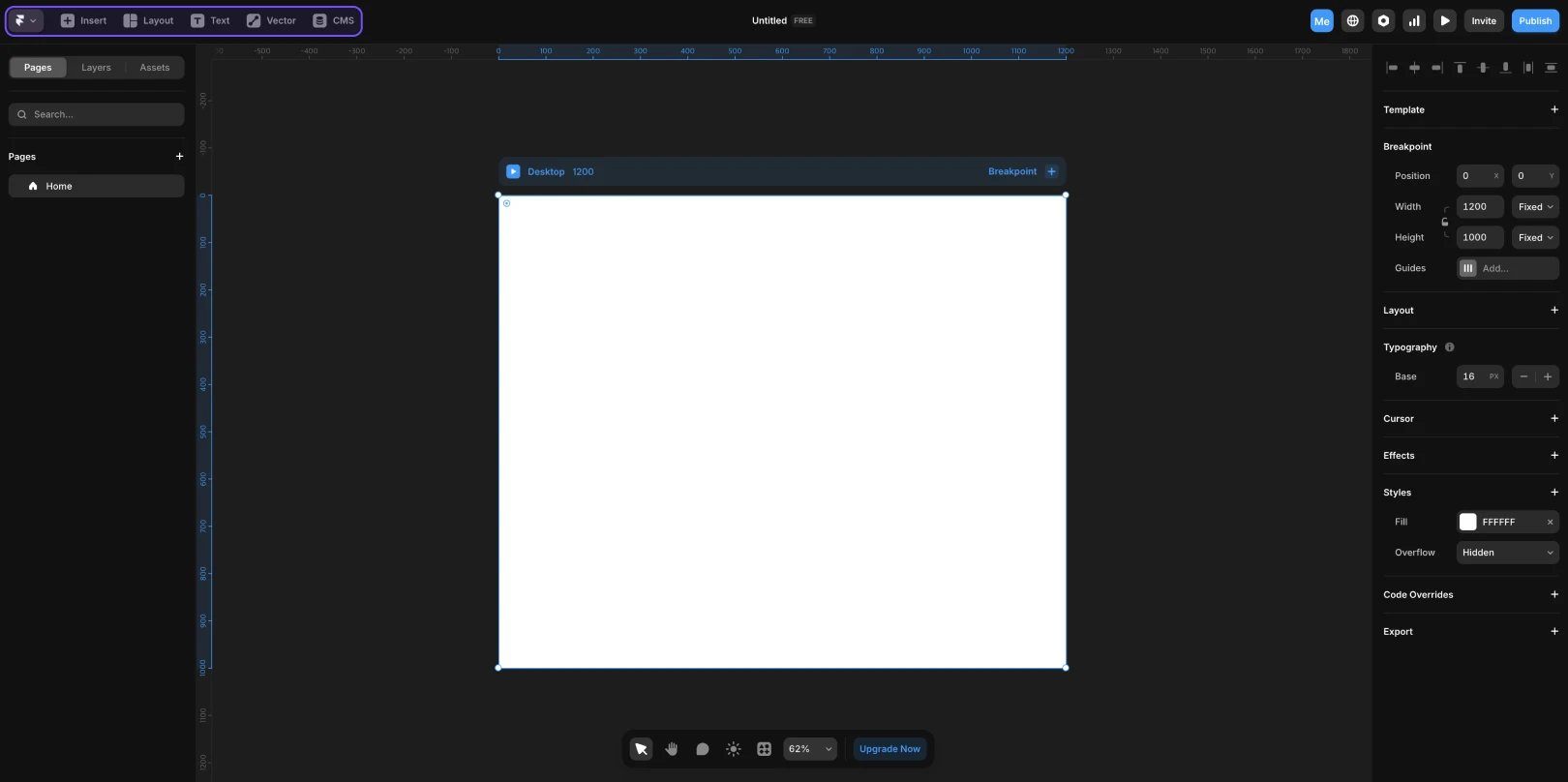
상단 툴바 좌측 영역을 설명합니다.

Name

Description

Framer Logo Button

  • Located at the far left of the toolbar.

  • Opens project-related menus such as creating, importing, and setting new projects.

  • Serves a similar role to the menu bar on Mac.

Insert

  • Indicated by a + icon.

  • Displays a panel to insert various elements like text, buttons, images, and components. (Shortcut:
    I)

  • Acts like a toolbox for designers.

Layout

  • Used for inserting frames or grid layouts.

  • Useful for responsive web design planning.

Text

  • Allows the insertion of text boxes.

  • You can immediately start typing or position it after clicking.

Vector

  • Draw basic shapes or custom paths.

  • Used in creating logos, icons, and illustrations.

CMS

  • Access the Content Management System (CMS) panel.

  • Ideal for configuring and managing recurring content like blogs and product listings.

(2) Center Area of the Top Toolbar

상단 툴바 중앙 영역을 설명합니다.

Name

Description

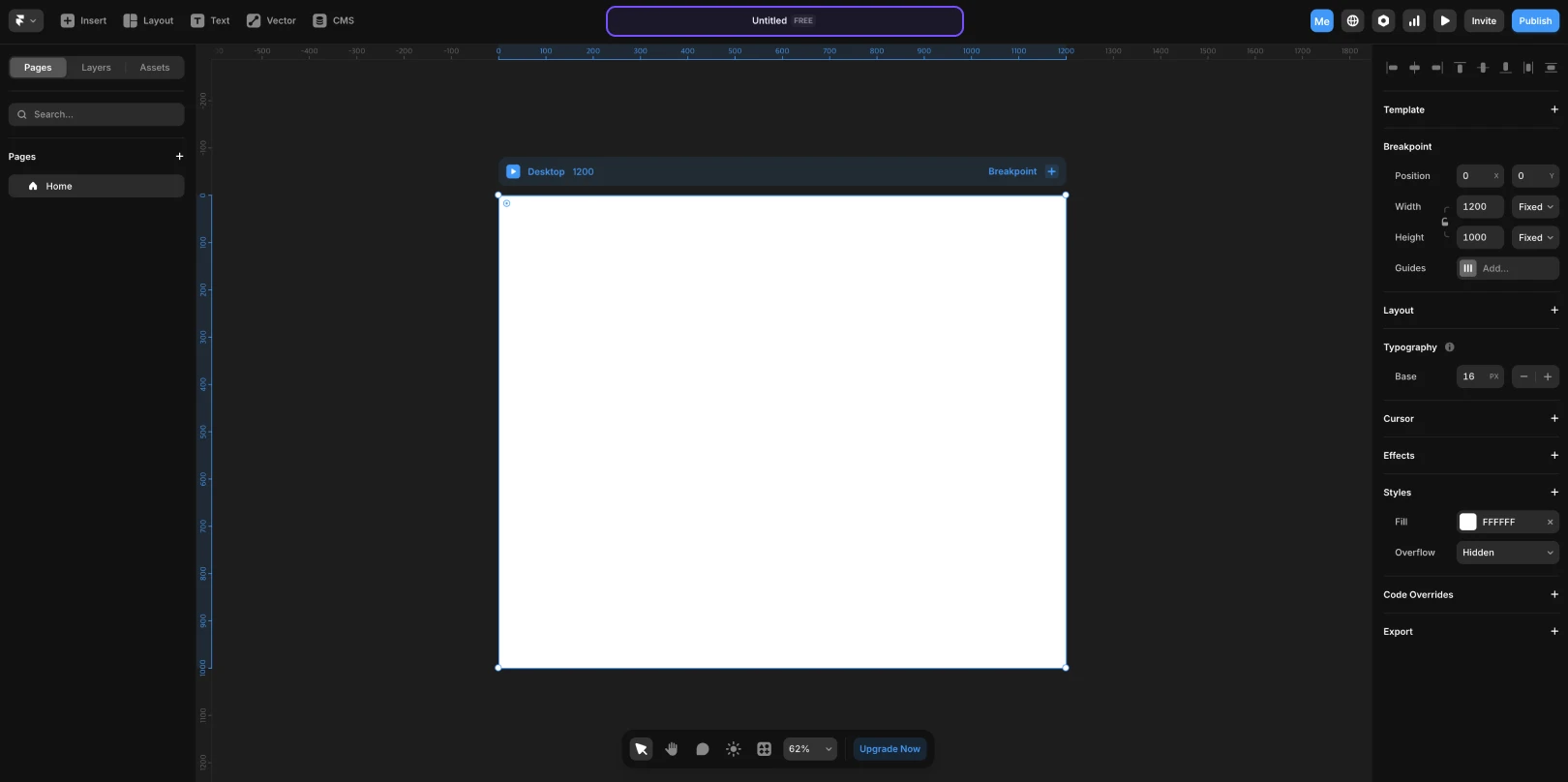
Project Name

  • Click to change the project name or folder location.

  • If it's a published site, the site URL appears next to it for quick access.

(3) Right Area of the Top Toolbar

상단 툴바 우측 영역을 설명합니다.

Name

Description

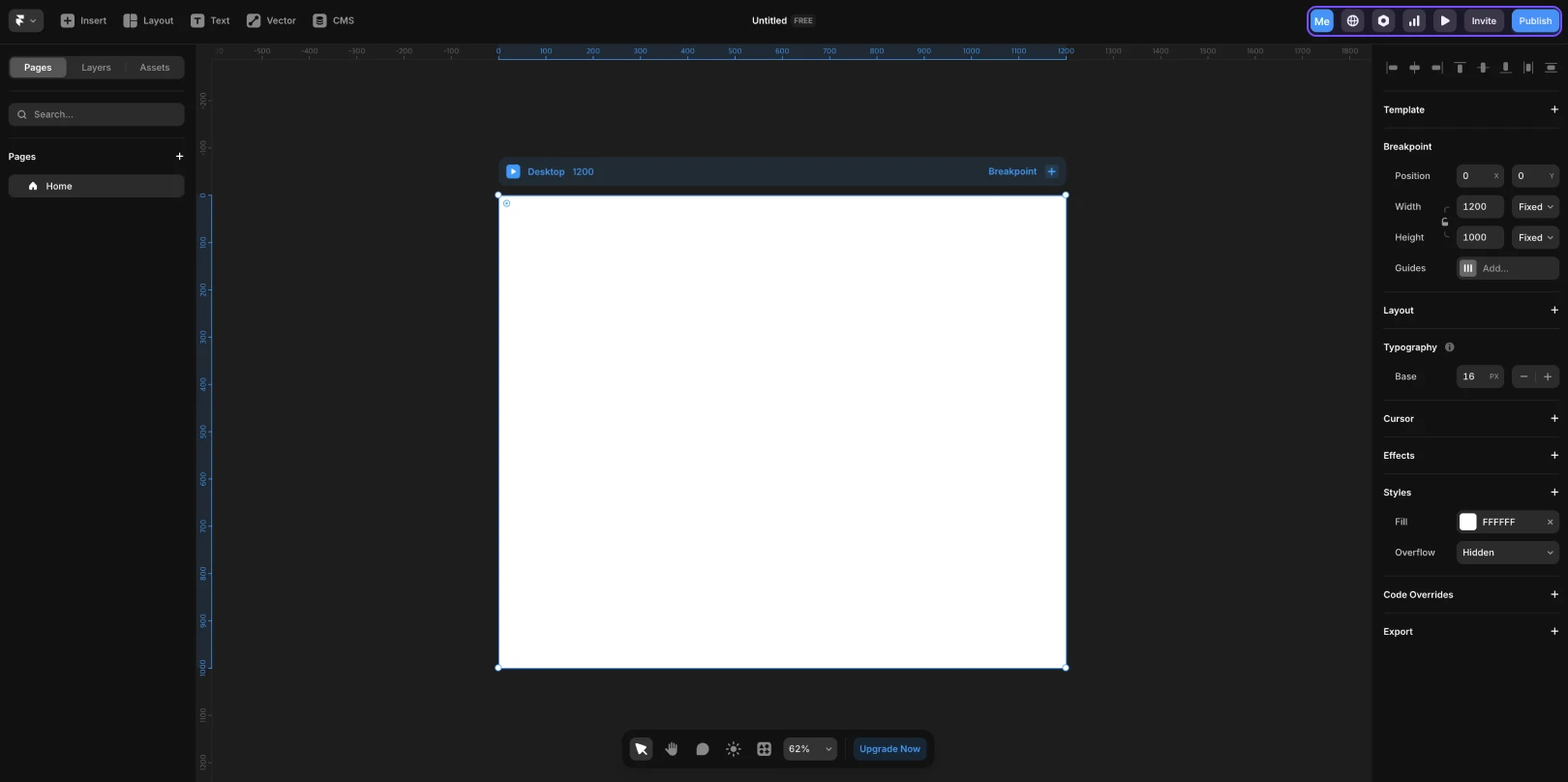
Collaborator Indicator

  • Displays the profile images of team members currently online in this project.

  • Enables real-time collaboration, showing who is working on what when you hover over it.

Localization

  • Allows setting the project's language and region. When creating multilingual websites, this setting helps display region-specific content.

  • Possible to link separate URLs or set different texts depending on the language.

Settings

  • The Detail Settings window for the current page or entire site.

  • Adjust various configurations like SEO, Favicon, Open Graph, and website background color.

  • You can also change the initial screen settings for mobile and desktop views here.

Preview Mode

  • A mode where you can preview the page you created as if in an actual browser.

  • Useful for testing responsive views or checking how interactions work.

  • Fast, as it can be viewed directly inside Framer without opening a new tab.

Invite Button

  • You can invite other users as collaborators to this project.

  • Invitable via email address or Framer account, with permission settings supported (view only, editing allowed, etc.).

Publish Button

  • A feature to publish the website on the actual Internet.

  • Once published, a public URL is created, and any changes afterward can be updated.

Left Sidebar

The left sidebar is where you structurally manage pages or elements within a project. It has three tabs, allowing you to switch types as needed.
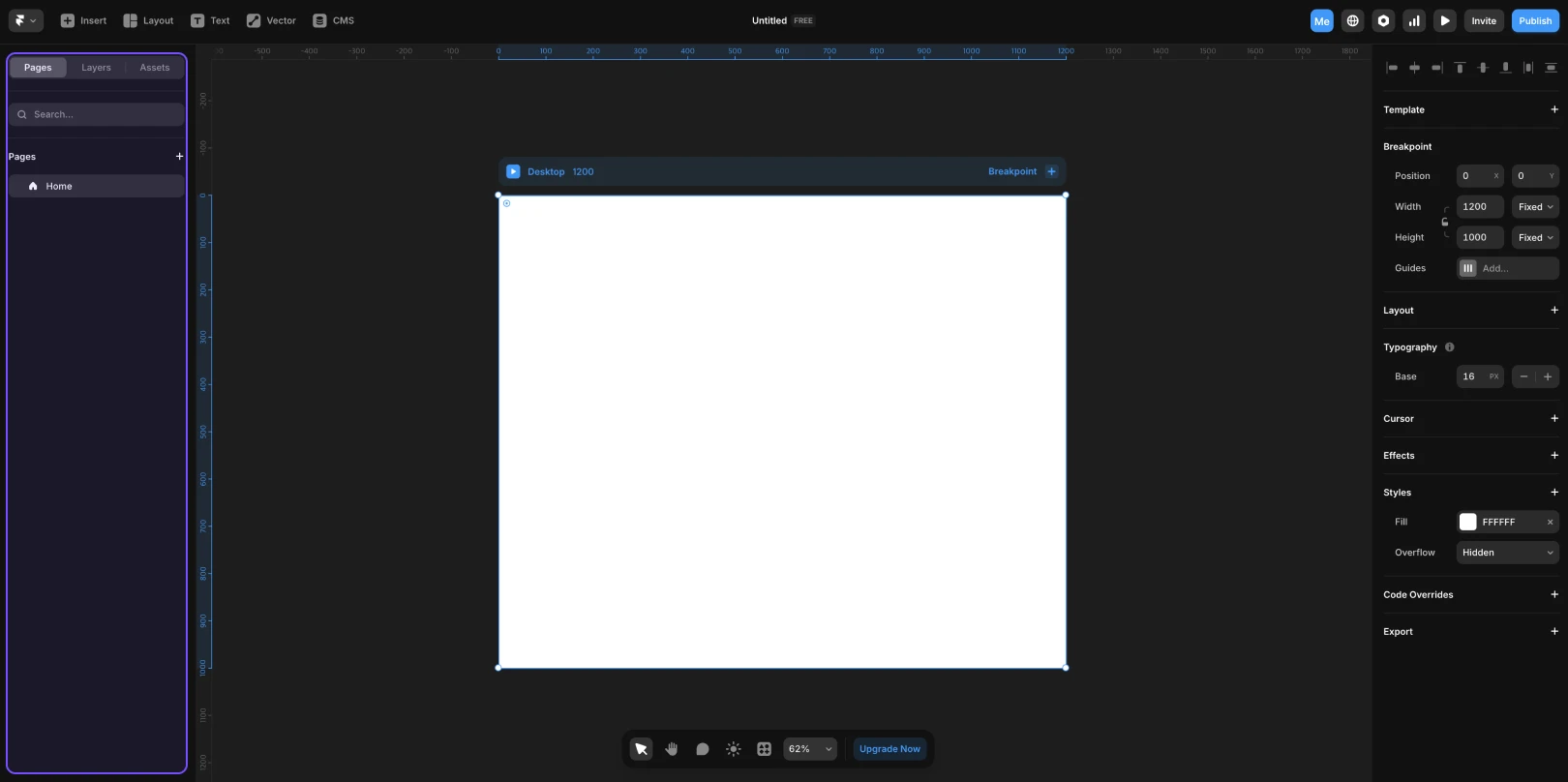
왼쪽 사이드바를 설명합니다.

Name

Description

Pages

  • Manage each page within the project. You can create or edit them.

Layers

  • Shows all elements (text, buttons, frames, etc.) within the current page in a hierarchical structure.

  • With the Page Switcher at the top, you can switch to different pages directly.

Assets

  • Manage components, styles, and code files in the project in one place. If you've used Figma, the Layers panel will feel quite similar.

Right Sidebar

오른쪽 사이드바를 설명합니다.

Name

Description

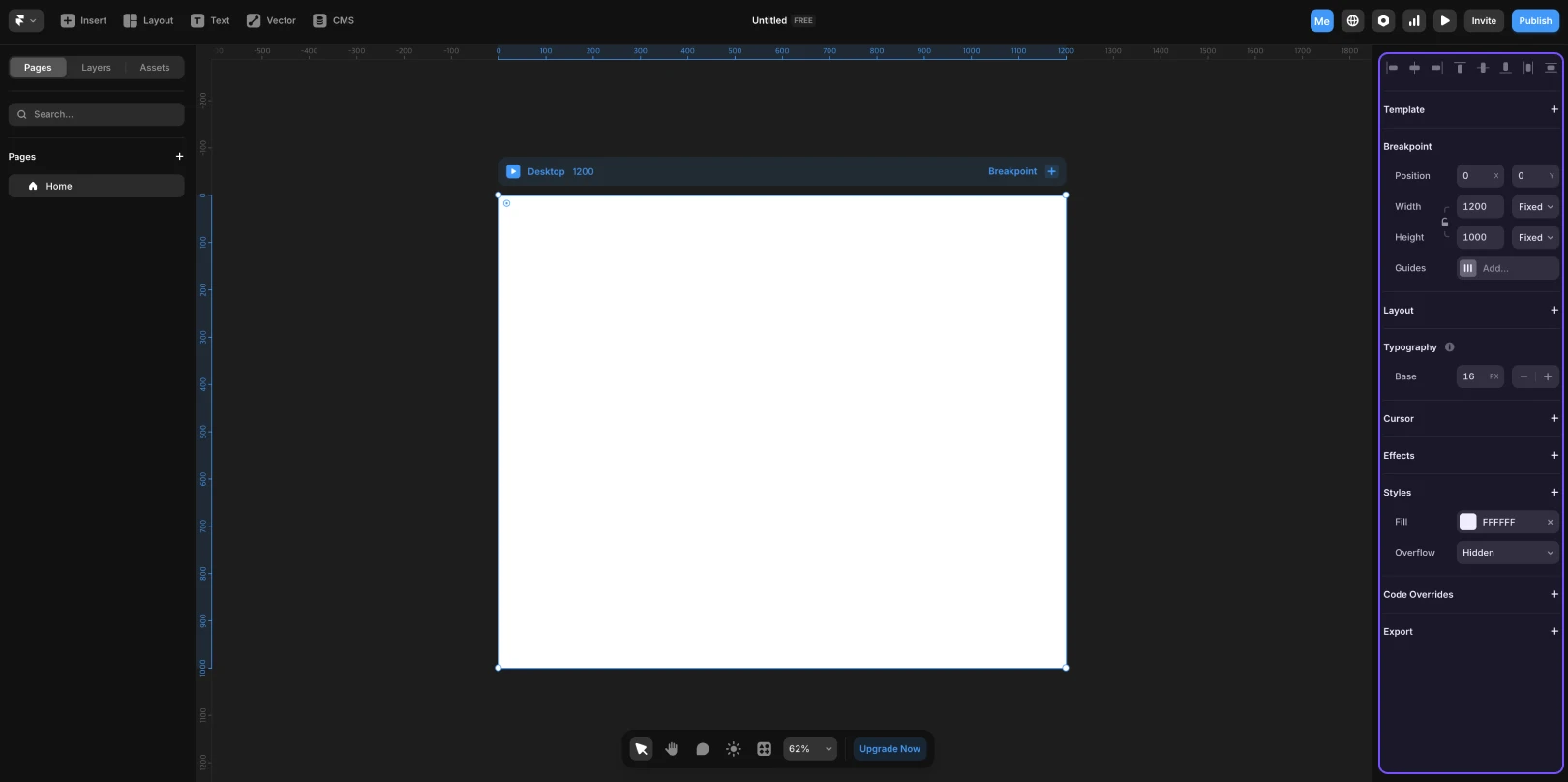
Properties Panel

  • A context-based panel that changes its content depending on what you've selected.

  • If you select a text box, settings related to text such as font, size, and spacing appear, and if you select a Breakpoint, only settings related to responsive layouts are shown.

Canvas

캔버스를 설명합니다.
  • A space where designers arrange elements and directly design the visual structure. With infinite expandability, you can freely place elements without limitations.

  • Framer’s pages are always within a 'Breakpoint' frame. This Breakpoint sets the layout standard for responsive web design, allowing adjustments for various screen sizes such as desktop, tablet, and mobile.

  • To place an element on the canvas, select the desired item from the Insert menu, and drag it onto the canvas. You can see a live preview on the canvas and even simulate interactions directly.


(1) Tools at the Bottom of the Canvas
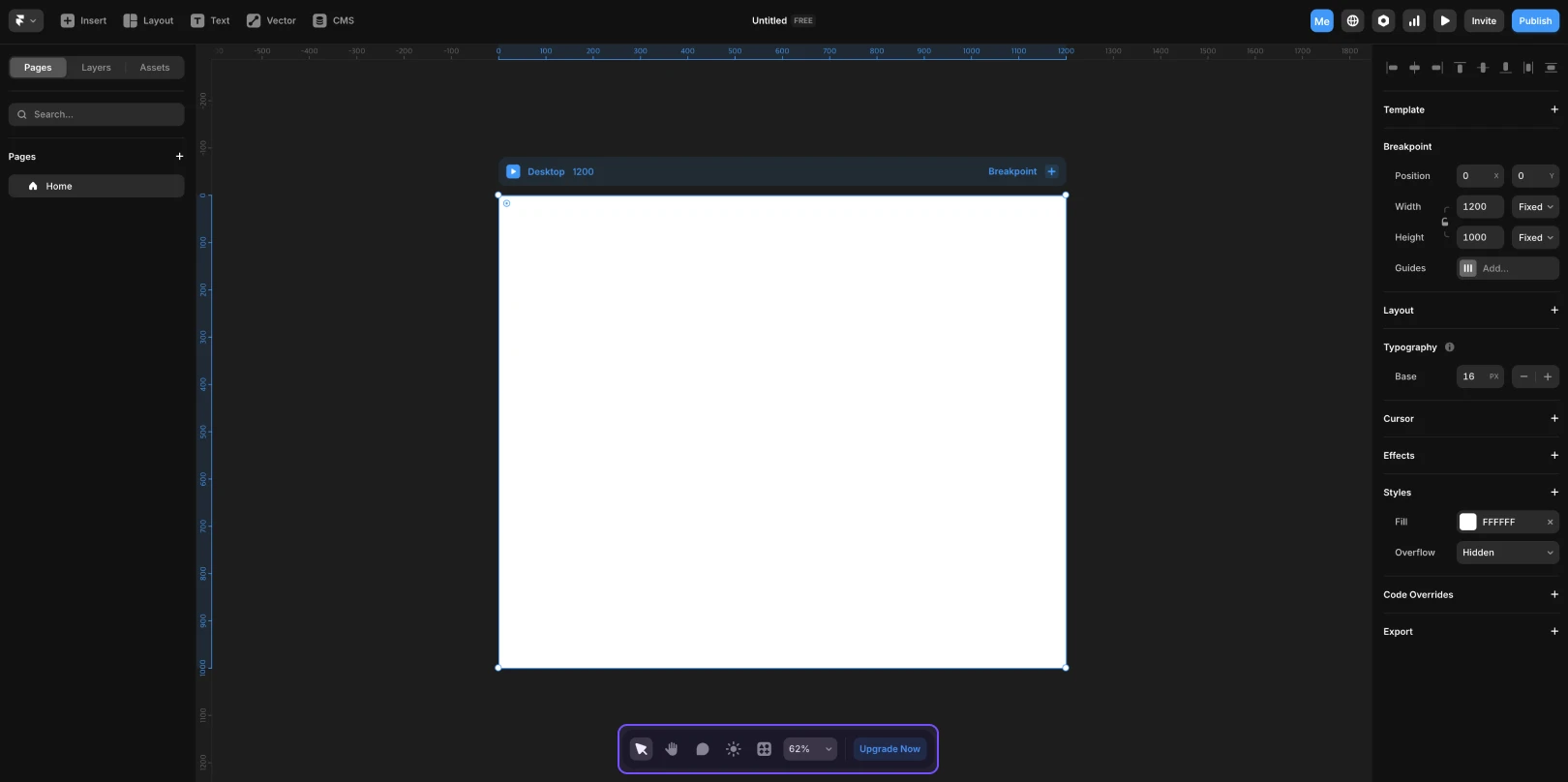
캔버스 하단 도구를 설명합니다.

Tool Name

Function Description

Pan Tool

  • A tool for freely moving around the canvas.

  • Drag with the Spacebar held down to move the whole screen.

  • As your workspace grows, you'll frequently use this fundamental manipulation tool.

Comment Tool

  • A tool for leaving feedback and comments on the design.

  • You can click and enter comments at any desired location, making it very useful during collaboration.

  • Real-time communication keeps the workflow straightforward.

Day/Night Mode Switch

  • Switches both the interface and site theme to light/dark mode simultaneously.

  • Useful for checking visual contrast during design or testing preview screens in different situations.

Zoom Tool

  • Adjusts the workspace by zooming in/out the canvas.

  • Shortcuts:
    Zoom to Fit: Shift + 1 (View All)
    Zoom to Selection: Shift + 2 (Center on Selected Item)
    Zoom to 100%: Shift + 0 (Actual Size View)

  • Consistently check 100% view to avoid getting confused by enlarged views.


This article is translated and adapted from Framer's official YouTube video, ‘Getting familiar with the Framer interface (Fundamentals Lesson 1)’.

Share Blog

Share Blog

Share Blog

Become a
Framer Expert

Any expert capable of Framer outsourcing can apply.
We connect experts and clients directly, with no intermediary fees.

Become a
Framer Expert

Any expert capable of Framer outsourcing can apply.
We connect experts and clients directly, with no intermediary fees.

Become a
Framer Expert

If you are an expert available for Framer freelance work,
anyone can apply.
No intermediary fees, we directly connect
experts and clients.