Read Time
min
CMS
Jul 9, 2025
How to Use CMS Pages: From Creating Collections to Designing
With Framer's CMS pages, you can efficiently manage and automatically generate content. It provides a way to easily link and design various types of content, such as blogs and news, by setting up collections and fields.



Contents
Table of Contents
What is a CMS Page?
A CMS page is one that can be automatically created to repeat multiple content items, like blogs or news, using the CMS features. With a single design template, you can rapidly manage several items, making it extremely convenient for handling large-scale content.
What is CMS?
It stands for Content Management System. Even without a designer, you can input text, and pages are created using pre-designated layouts. This makes it useful for cases with a lot of content that changes frequently, like blogs, news, and product listings.
Creating a CMS Collection
To use CMS pages, you first need to create a collection, which will be the frame of your content.Note : A CMS collection is essentially a folder that gathers similar types of content. Simply put, it's a content group.
How to Create a CMS Collection
Click
CMSin the top menu of FramerPress the
+button in the sidebar to create a new collectionEnter a collection name (e.g., Articles, Products, etc.)

Setting Fields
Fields refer to the types and structures of data included within each CMS content item.
How to Set Fields
Click
Edit Fieldsin the top barAdd required fields
Field types:
Plain Text: Short text like titlesFormatted Text: Long text like body contentImage: Banners or thumbnailsDate: Publication dateEach field's name can be changed, descriptions can be added, and required status can be set
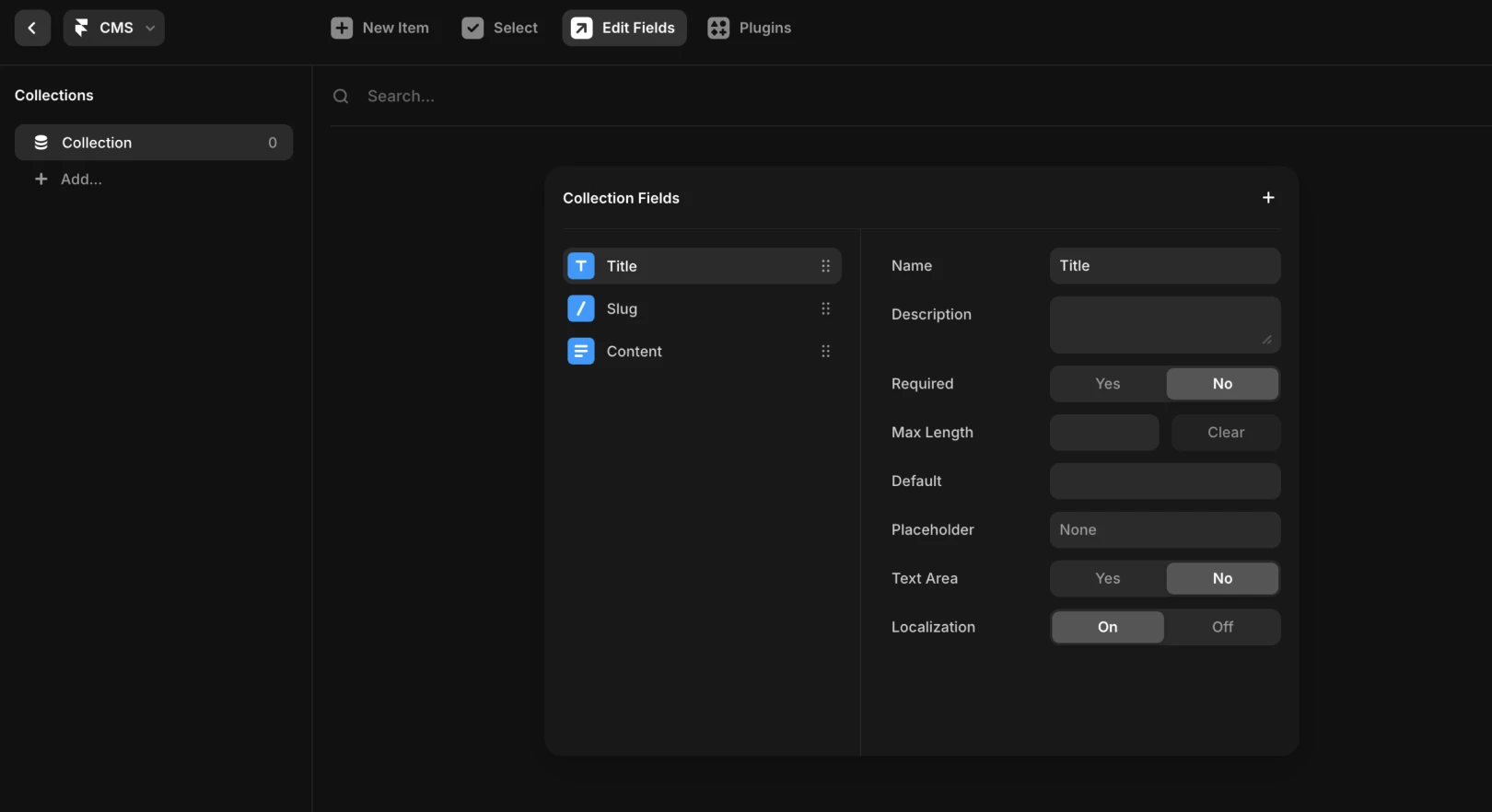
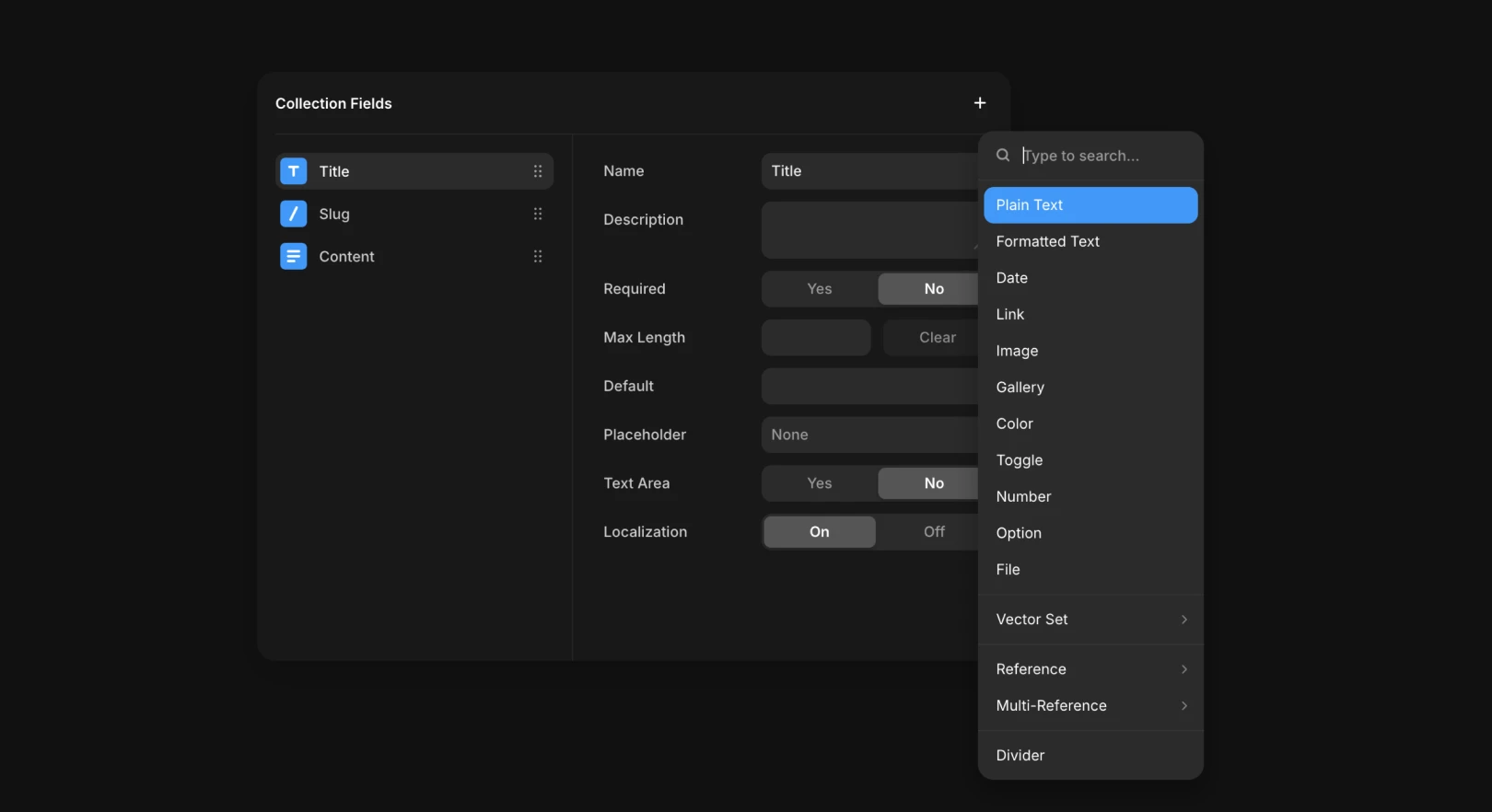
Note : Adding descriptions to fields can clearly convey information when working in a team.
Adding Items
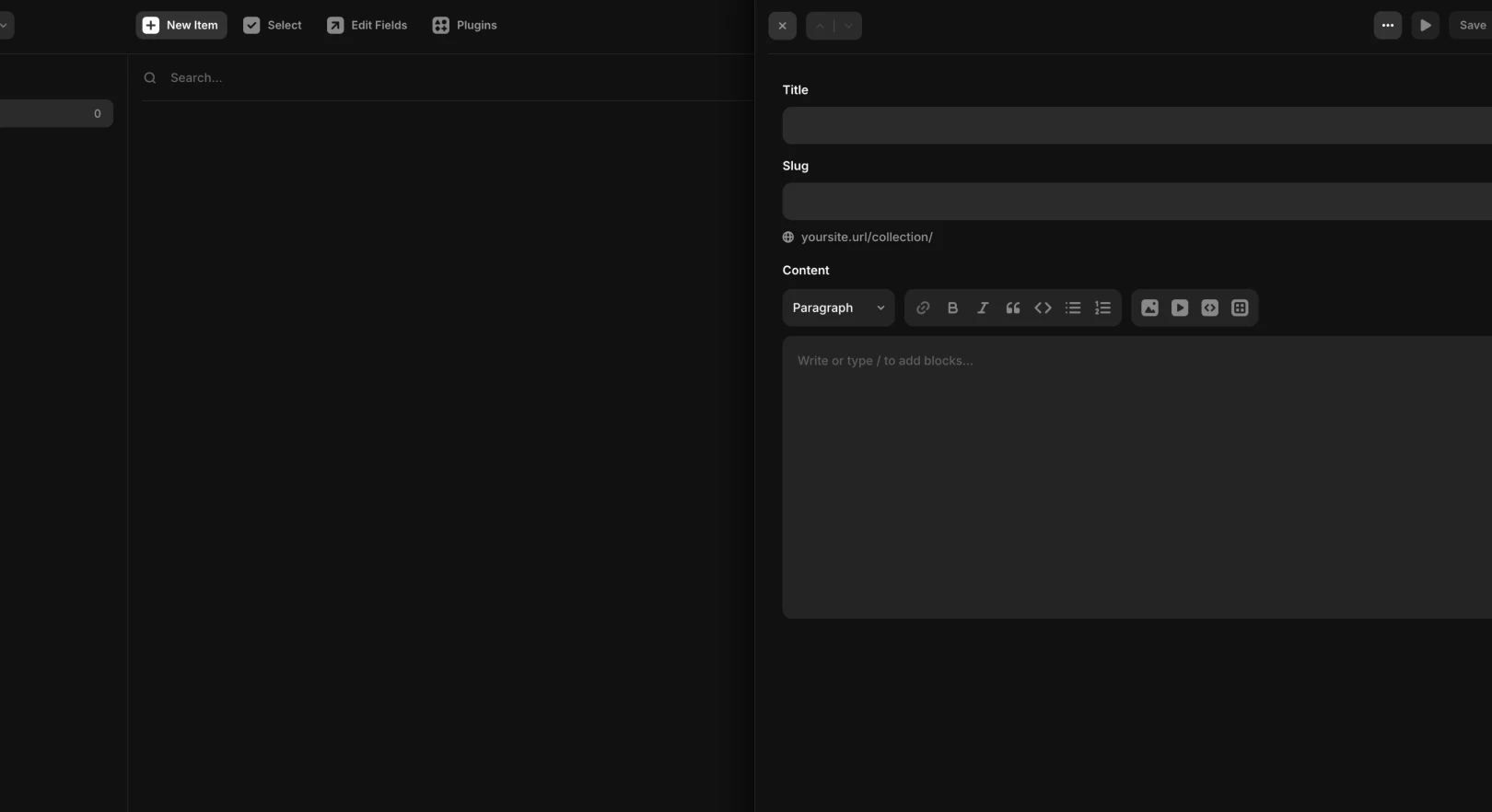
Each content piece within a collection is known as an item.
How to Add Items
Select the created collection
Choose
New Itemfrom the top barEnter the blog post title, date, image, body content, etc., into each field
Each item added this way is linked to a single CMS page.
Designing the CMS Detail Page
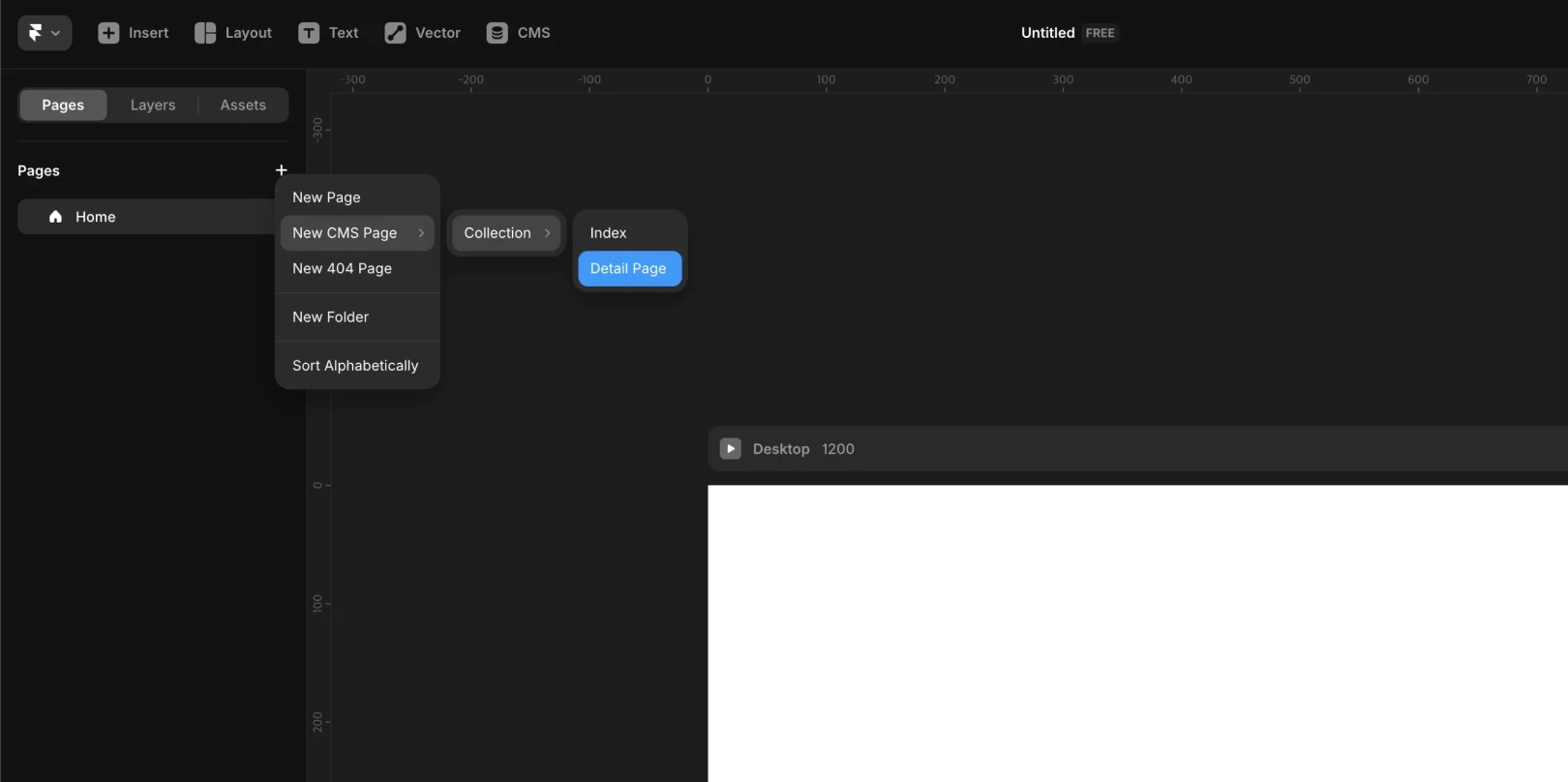
In the page tab of the sidebar, click the
+button → selectNew CMS PageSelect the collection to be linked (e.g., Articles)
Choose the type of Detail Page
Index Page: Item list (blog list, card view, etc.)Detail Page: Single item content page
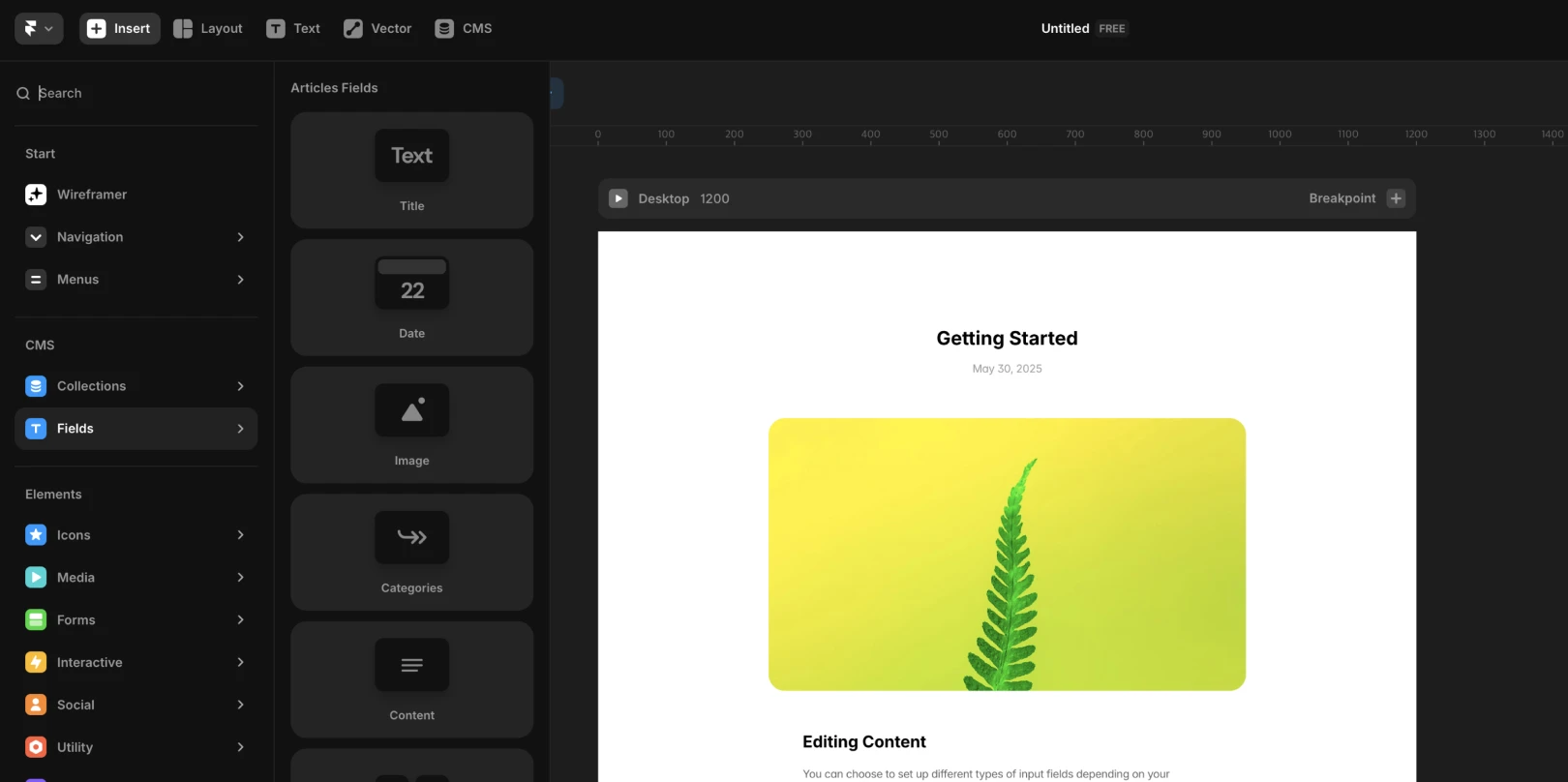
The fields of the selected collection are automatically linked to the page
Use elements from the
[+]insert>Fieldstab to design
Q. Can I add new fields after creating a CMS Detail page?
Go back to CMS collection and select
Edit FieldsAdd a new field (e.g.,
Linkfield)Enter the content of the field into the CMS item
How to connect the Link field to the CMS page using variables
Q. What if the fields vary across pages?
Suppose some posts have a Link field while others do not. If a button keeps appearing in posts without a Link field, it would have no meaning and look awkward in design, right? In such cases, use Conditional Visibility to display elements only when there is data in a CMS item.
Select an element (e.g., button)
Click the
+button beside Visible in the property panelSet Variable> select theLinkfieldClick on
is set
After selecting the is set option, the element is shown only when the field is available, and it is automatically hidden otherwise.
This content is translated and adapted from the Framer official video ‘Understanding CMS Collections, Items & Fields in Framer’.