Read Time
min
Get Started
Jul 9, 2025
How to Use Framer Pages
Framer offers various page types such as web pages, CMS pages, and canvas pages to help users efficiently manage and design content. Let's explore the types and purposes of these pages.


Contents
Table of Contents
Creating a Page – Start with the 'Homepage'
When you create a new project, a Home (Index) page is generated by default. This page cannot be deleted and serves as the starting point of the site. Since Framer is centered around desktop design, the default canvas width is 1200px.
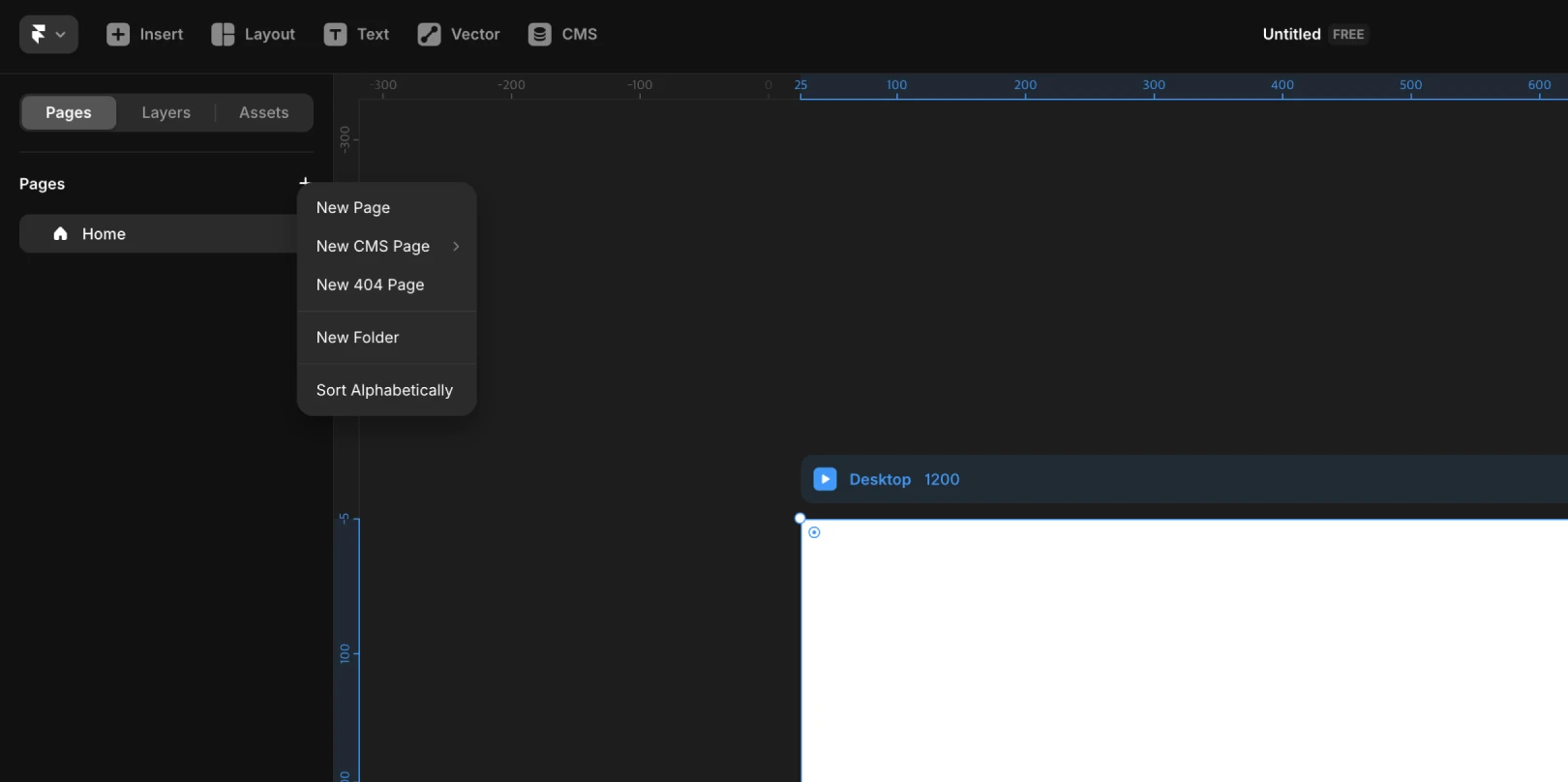
Note : Although the area outside the canvas doesn't appear on the actual website, it's useful for quick iterative work or asset storage.
How to Use Page Options
Hover over a specific page in the page list on the left, and the ••• (More) button appears.
(Also appears with right-click)
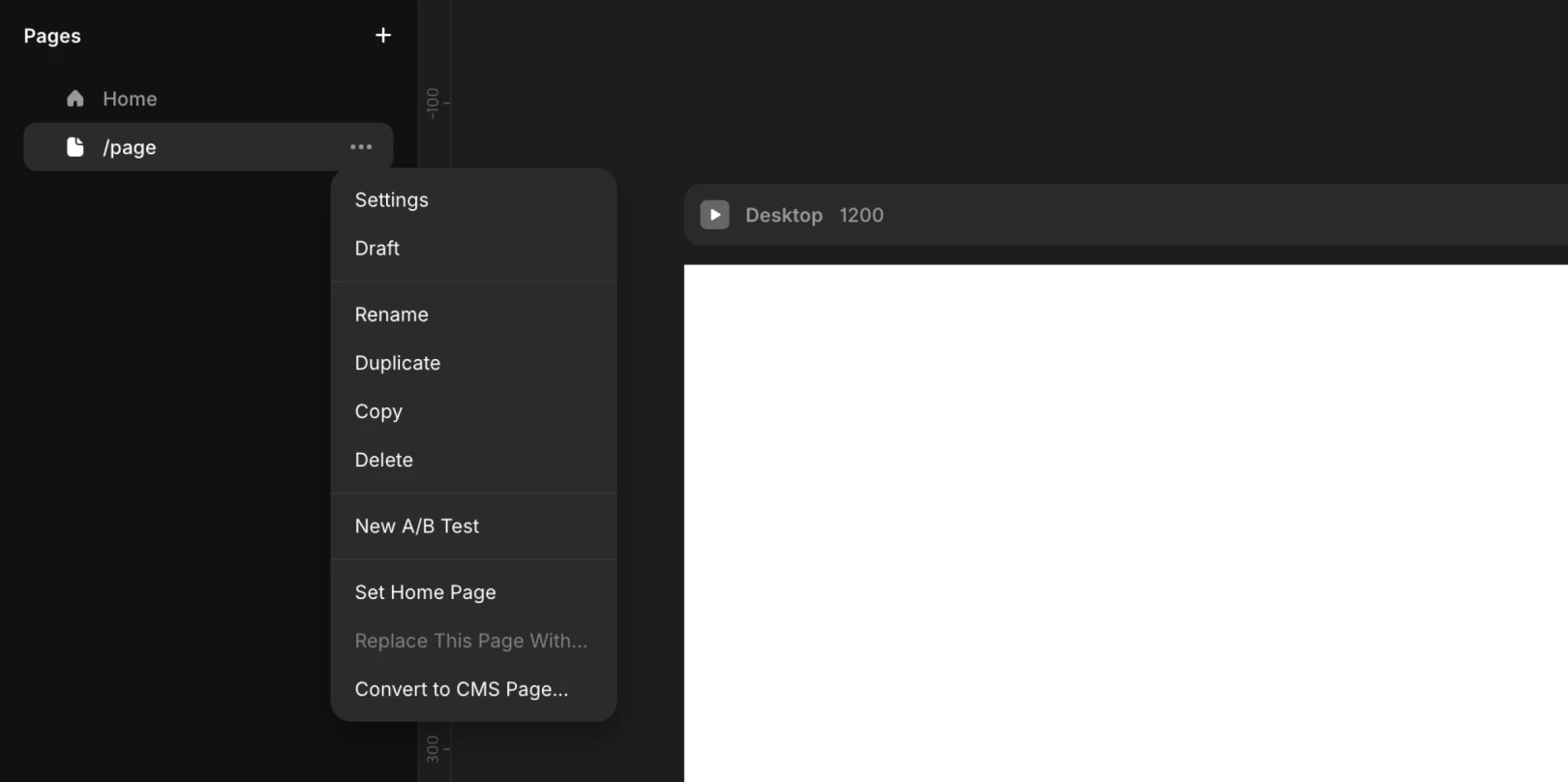
Main Features Available When Clicking ••• (More) Button
Feature Name | Description |
|---|---|
Settings | Open detailed page settings |
Duplicate | Duplicate the page |
Copy | Copy the page |
Rename | Change name (disabled for the homepage) |
Delete | Delete the page (cannot delete the homepage) |
New A/B Test | Set up an A/B test |
Replace This Page With... | Replace this page with another page |
Home Page | Set this page as the homepage (checked if selected) |
Types of Pages in Framer
Web Pages
Web pages are the actual pages we design and publish. They house all the site content like blog posts, company info, and feature descriptions.
They are created based on the desktop breakpoint (1200px) by default.
Responsive pages can be created by adding mobile, tablet, and other breakpoints as needed.
Each web page has a URL and can contain content exposed directly on the site.
These web pages collectively form the sitemap structure of the entire website (functions as a sitemap).
CMS Pages
With the CMS feature, you can automatically create pages with repetitive content like blogs or news. It is very convenient for managing large-scale content, as multiple items can be quickly organized based on a single design.
What is CMS?
It stands for Content Management System.
Useful when there is a lot of content that constantly changes, like blogs, news, or product listings.
Pages are created with the pre-defined design, even if you just input text without a designer.
Please refer to 'How to Use CMS Pages' for detailed usage of CMS pages.
Canvas Pages
A versatile page where you can freely create design assets.
Although not directly linked to the website, it's useful for designing and exporting social media banners, visual elements, brand images, etc.
Literally serves as a 'workspace for design'.
This article is a translated and adapted content from the Framer official documentation 'Using Pages'.
More posts