Insights
Dec 24, 2025
Add Intercom to the Framer project
Enhance customer communication by adding Intercom to your Framer project and automate customer support with an AI-powered chatbot. This guide provides detailed instructions on installation and configuration.

Uploaded by

Translated by

Contents
Table of Contents
What is Intercom?
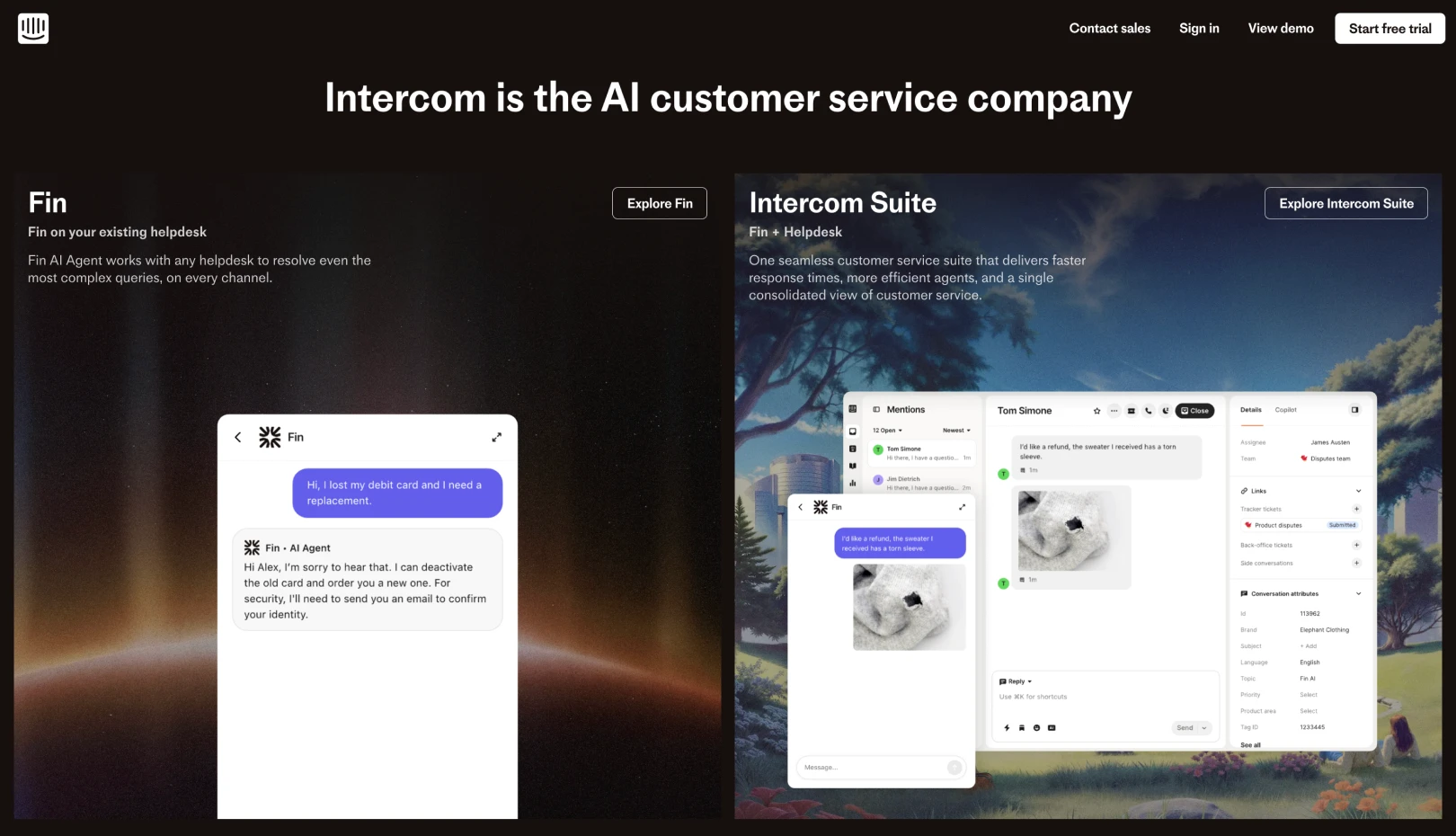
Intercom is an AI-powered service for communicating with website visitors and providing customer support, offering features like customer messaging, live chat, and automated AI agents (Fin). Upgrade your Framer site by integrating Intercom through this blog.
How to Add Intercom to Your Site
Setting Up Intercom Messenger
Log into your Intercom account.
After installing Messenger, navigate to
Messenger > Platforms > Web > Show the Messenger Launchersection to check its activation status.Customize the Messenger settings, such as style and target audience, to fit your site.
Copying the Workspace ID
You can find the Workspace ID in the browser address bar (URL) when logged into your Intercom account. In the URL structure below, the Workspace ID is o0ma3k8s.
Example: https://app.intercom.com/a/apps/o0ma3k8s/guide-library
Adding the Intercom Component to Framer
Open your Framer project and click
Insertin the top bar to open the panel.Drag
Intercomfrom the Integration section to the canvas.
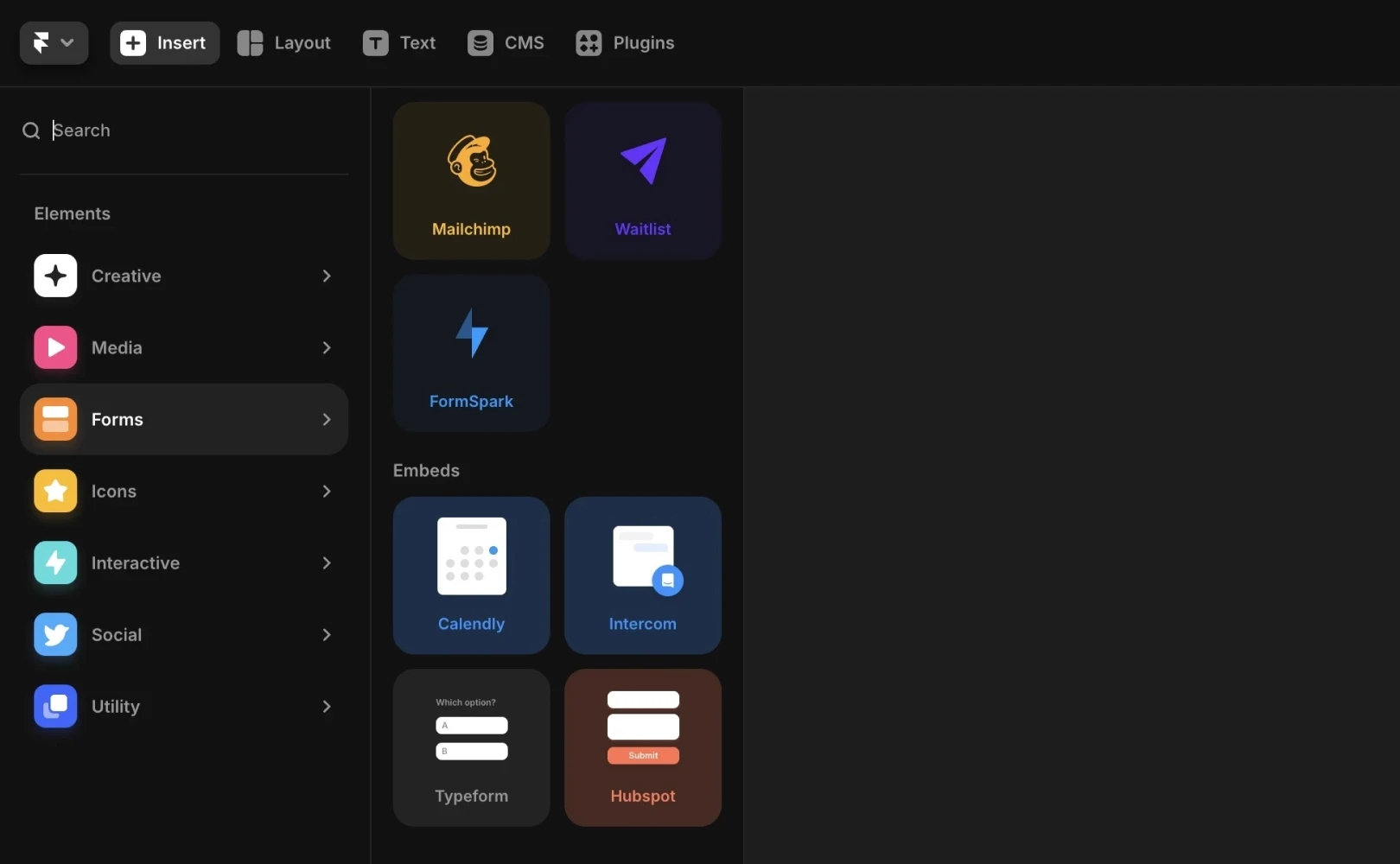
Pasting the Workspace ID
Select the Intercom component added to the canvas. Paste the copied Workspace ID into the ID field on the right property panel.

Preview or Publish Your Site
While the Intercom component appears as a placeholder on the Framer canvas, it will not be visible on the live site.
Preview or publish your site to see the Messenger in action. If the Messenger isn't visible, we recommend following this guide.
Utilizing Intercom in Framer
Lead and Customer Acquisition: Add a business messenger to communicate with visitors in real-time.
Automation: Use chatbots to handle basic queries and automate workflows.
Streamline Customer Support: Centralize support requests for easier and more efficient customer query responses.
Frequently Asked Questions (FAQ)
Q. Can I integrate Intercom while using the free plan on Framer?
Yes, using the basic components available in Framer's integration section is not limited by the plan.
Q. If the Intercom component is not visible on the canvas, does that mean it was deleted?
No, Intercom components are displayed as transparent or small icon placeholders on the design canvas to avoid blocking the actual site view. Check the right layer panel for the Intercom component to confirm its presence.
Q. Can I test the chat in Preview mode without publishing the site?
Yes, it works in Preview mode. Click the Preview button at the top of Framer to check if the Intercom Messenger appears in the same environment as the deployed site.
This content is a translated and adapted version of the Framer official blog post ‘Adding Intercom to your site’.