Read Time
min
Insights
Dec 3, 2025
Disabling text selection in Framer layers
By disabling the User Select property in Framer, you can resolve issues with text dragging when clicked. This enhances the user experience while maintaining default actions like button clicks.



Contents
Table of Contents
Why should you disable the User Select property?
When users navigate a website, it can be inconvenient if there is selectable text, like text inside an element they're trying to click. For example, if you try to click a button, but the text gets dragged instead, the experience becomes awkward. In such cases, you can use the User Select property to prevent specific layers from being selectable.
How to disable User Select
Click the layer you want to prevent selection on.
Open the properties panel on the right side.
Click the
+icon in the Styles section to add a new property.Select
User Selectto add it to the layer.
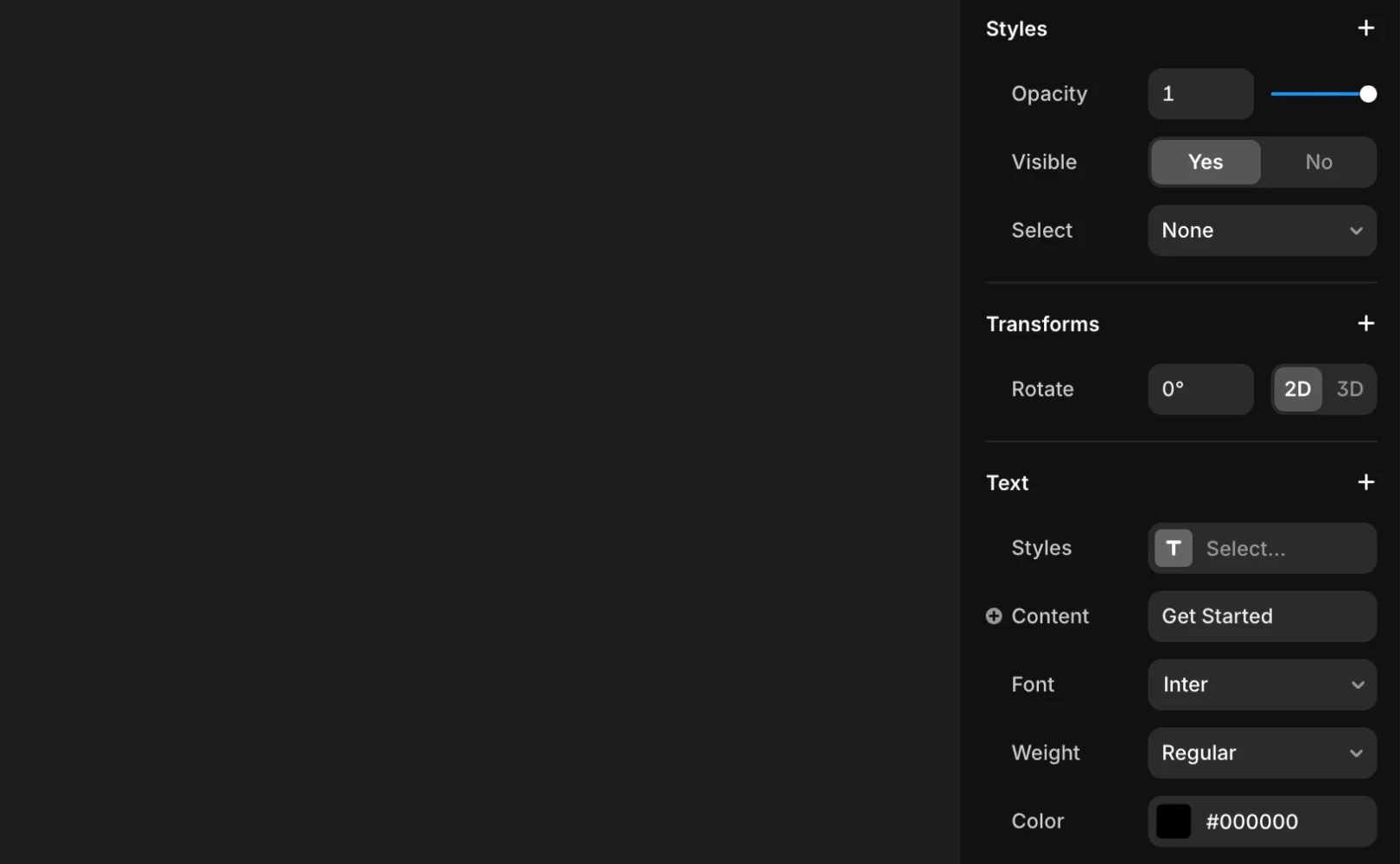
After adding the User Select property
Once added, you can choose from two options below.
None: Sets this layer to not be selectable.Auto: Follows the browser's default settings and allows selection.
Once set, it isn’t fixed permanently, so you can reopen the User Select property to change the value as needed. If it’s an element users don’t need to drag as text, it’s usually best to select None for neatness.
If it doesn’t work as expected after setting, you can quickly get assistance by contacting the Framer Support Team.
Frequently Asked Questions (FAQ)
Q. If I set the None attribute, will the button containing the layer also be unclickable?
No. The User Select property only prevents the selected layer from being dragged/selected. Button clicks, hover effects, etc., will still function normally.
Q. Can User Select be applied to images or icons?
Yes. If you select an image or icon layer and add this property, it can be set to not be selectable.
Q. Can setting None prevent layer copying (Ctrl+C) too?
Yes. Since it’s set to prevent the text layer from being selected by mouse-dragging, text copying is also blocked.
This article is a translated and adapted content from the Framer official blog's ‘Disabling user select on a layer’.
More posts