Read Time
min
Insights
Dec 3, 2025
Setting up Google Analytics in Framer
Easily connect Google Analytics in Framer to analyze your site visitor data and experience efficient data management with customized analytics tools. GA4 doesn't log IP addresses, making it favorable for GDPR compliance.



Contents
Table of Contents
Why connect Google Analytics?
If you want to know which pages are frequently viewed or the sources of your traffic, an analytics tool is essential. Framer makes it very easy to integrate such analytics tools. In particular, Google Analytics is the most commonly used tool and can be connected with a simple method.
How to connect Google Analytics
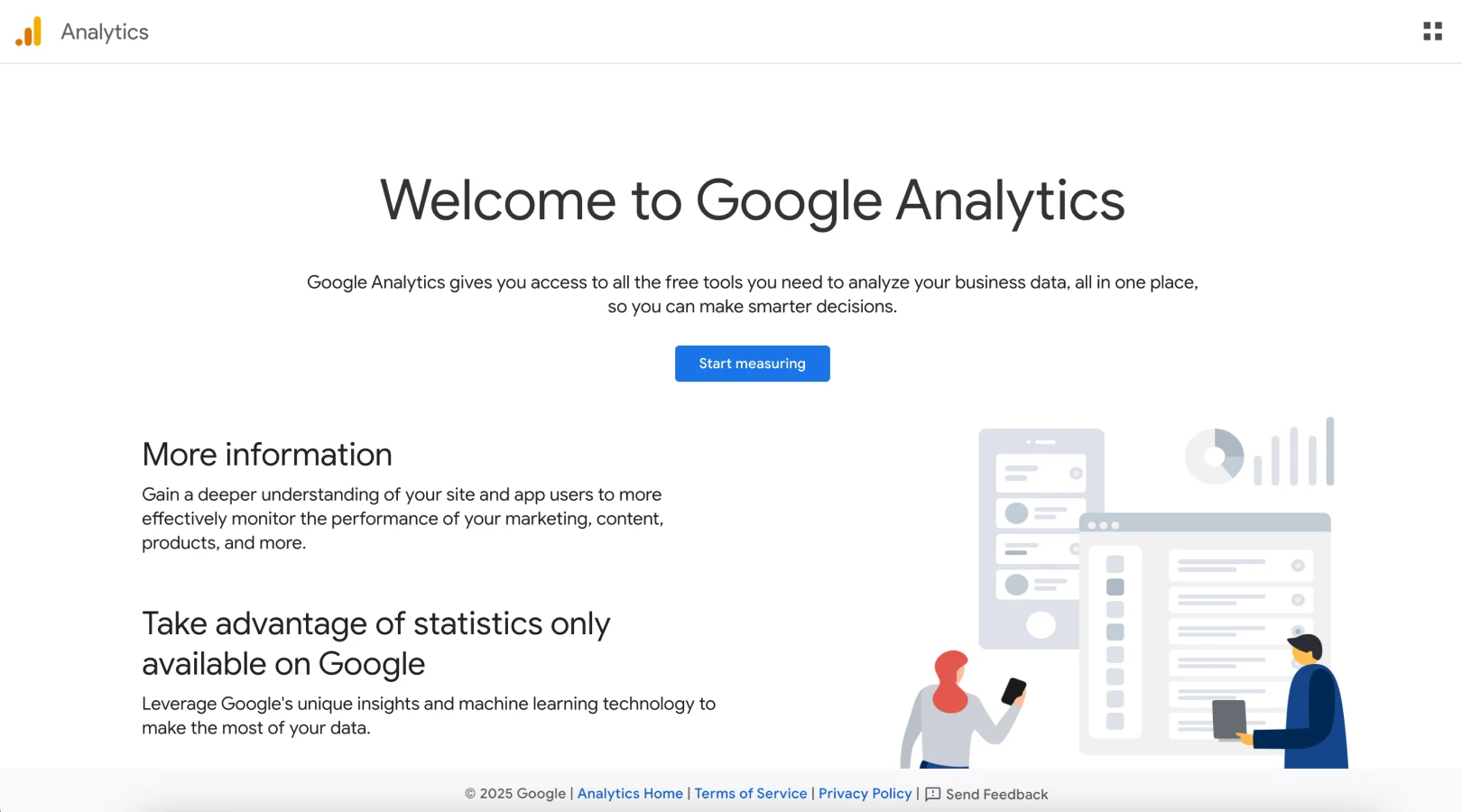
1. Create a Google Analytics account
If you don't have an account, please visit the Google Analytics website to create one.
2. Create a new Property
Follow the instructions on the site to create a property.
3. Copy the Measurement ID
After creating a property, copy the issued Measurement ID.
4. Open Site Settings in Framer
In your Framer project, go to Site Settings at the top right.
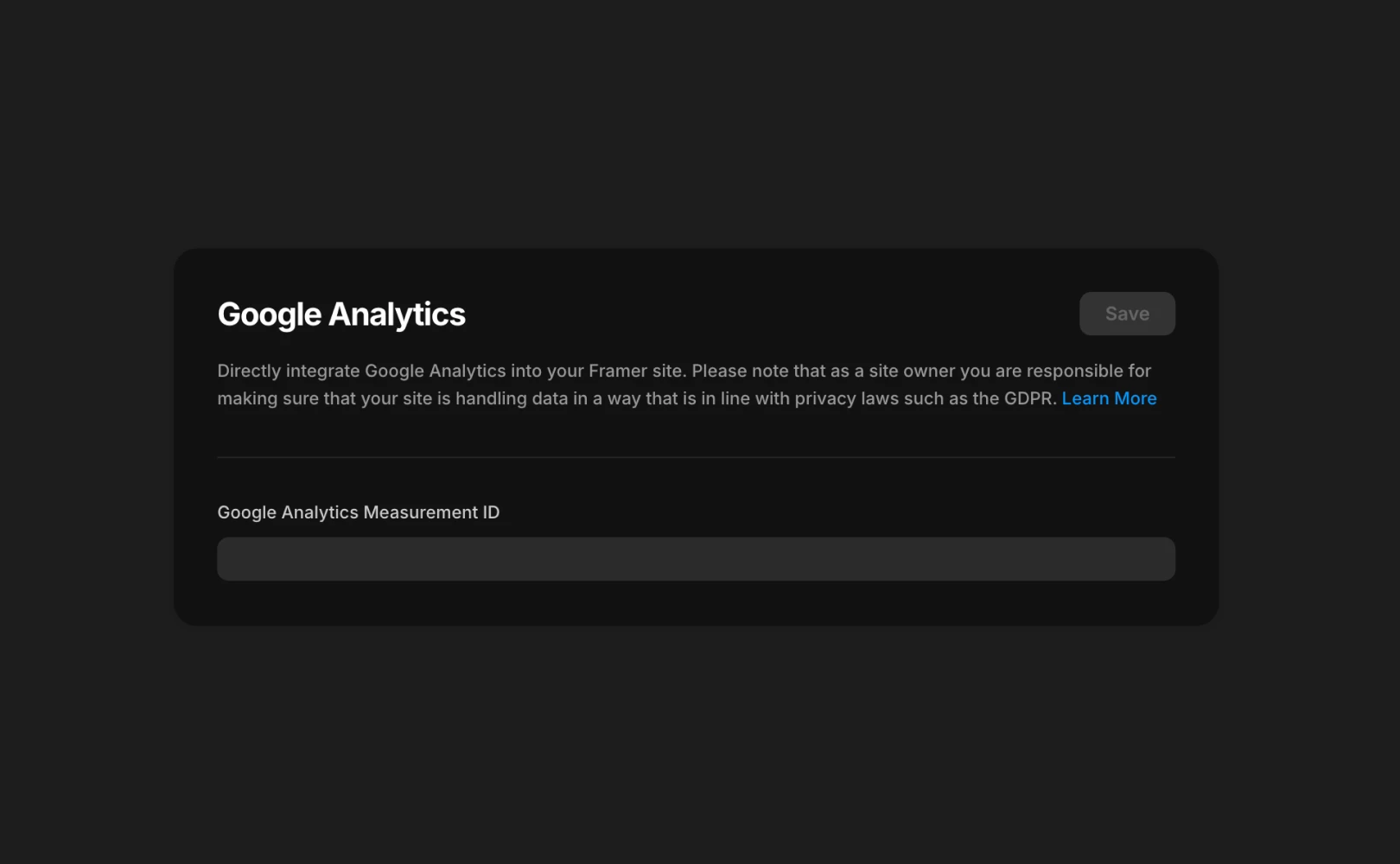
5. Enter ID in the Google Analytics section
In the settings, there is a field labeled “Google Analytics Measurement ID.” Paste the copied ID into this field.
6. Save and publish the site
After saving the changes, publishing the site applies the Analytics connection immediately.
Note: Google Analytics 4 (GA4) does not record or store IP addresses, so you don't need to set an IP anonymization option separately. However, remember to comply with privacy laws like GDPR.
Adding other third-party analytics tools
For other third parties, just copy the Tracking Script provided by the service and paste it directly into the Custom Code section of Framer.
For more detailed usage of Custom Code, you can check the Framer Academy guide.
Frequently Asked Questions (FAQ)
Q. Can I use multiple GA Measurement IDs simultaneously?
No. The “Google Analytics Measurement ID” field in Site Settings can only accept a single ID.
Q. Does a team member need Framer permissions to access my GA panel?
No. Access permissions for GA are managed separately via email within Google Analytics, entirely distinct from Framer permissions.
Q. Can I just use Framer Analytics instead of GA?
Yes. Basic page views, clicks, and conversion flows can be sufficiently monitored using Framer Analytics. However, if you need detailed analysis like traffic sources, exit pages, segment analysis, or event-specific analysis, it is recommended to use GA.
This article is a translated and adapted version of Framer's official blog post ‘Setting up Google Analytics.’
More posts